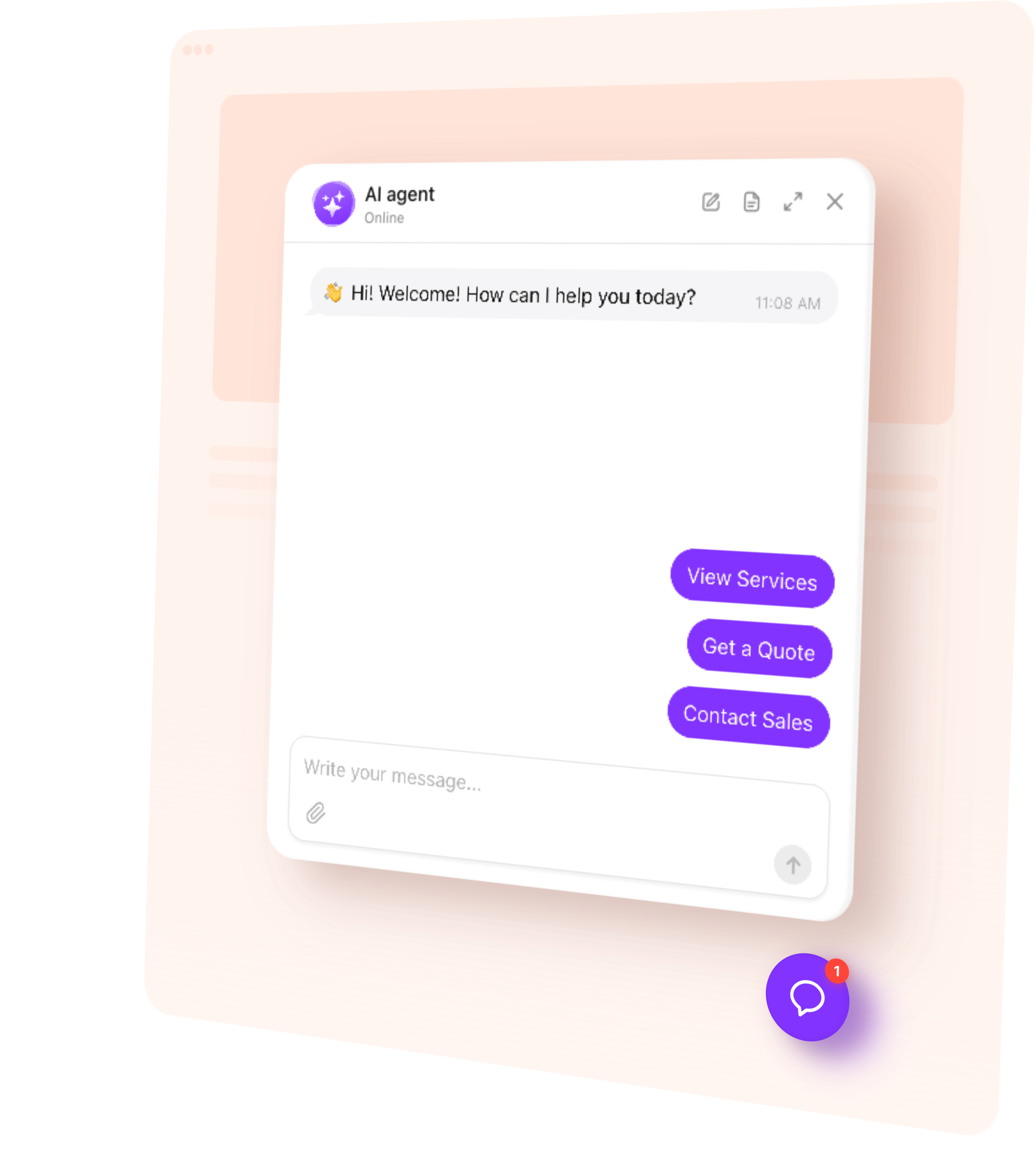
AI Chatbot helps shoppers choose products, understand store policies, and contact your team — 24/7. Add a WooCommerce AI assistant that answers from your business content and guides customers toward actions.
Give customers useful answers while they compare options and consider placing an order.
Explain products — Clarify features, sizing, compatibility, and intended uses.
Resolve buying questions — Help shoppers understand delivery, returns, and store policies.
Collect inquiries — Capture details for product advice, quotes, and follow-up.
Stay available — Support shoppers when your team is busy or offline.
Try AI Chatbot on Your WooCommerce Store for Free
Enter your domain → Customize your chatbot → Add it to your website.
1. Enter your website
2. Create AI agent
3. Add to website
AI Chatbot Features for WooCommerce
1.
Automatic setup. Enter your public store URL. The chatbot uses accessible content to build its initial knowledge and suggest a role and tone of voice.
2.
Answers from your content. Use product pages, buying guides, store policies, files, and custom Q&A to answer shopping questions.
3.
Conversation rules. Define how the chatbot helps customers compare options, presents your offer, and responds when your team needs to step in.
4.
Flexible appearance. Match the chatbot’s colors, name, and avatar to your store. Add a greeting and suggested questions that reflect what your customers ask.
5.
Multilingual conversations. Let shoppers ask questions and receive answers in their language.
Train Your AI Chatbot on Store Content
Bring product information and helpful content together. Add public WooCommerce product URLs, WordPress pages and blog posts, uploaded guides, and custom Q&A.
Product pages — Published features, materials, dimensions, and intended uses.
Buying guides and blog posts — How products compare and what to consider before buying.
Delivery and returns pages — Shipping terms, return conditions, and how to request help.
Store and contact pages — Your business, opening hours, locations, and contact options.
Files and custom Q&A — Size guidance, compatibility details, and missing answers.
Add up to 200 web page URLs. For a larger catalog, prioritize the products and guides that answer common questions. Use Retrain after updating a source page, and add new URLs when needed. Website training does not automatically synchronize WooCommerce stock, prices, or variations.
Recommend relevant products — Use the shopper’s questions and your product information to suggest suitable options. Offer product links so customers can review the details, select a variation, and continue shopping in WooCommerce.
Capture leads — Ask for a name, email, or phone number when someone needs a quote or personal product advice. Keep the details with the conversation so your team can follow up with context.
Book a consultation — Connect Calendly or Cal.com so customers can choose a time for product advice or a service appointment directly in the chat.
Offer human contact — Provide email, phone, or WhatsApp contact when your team needs to check an order or handle a special request.
Follow up during a visit — Send a message after a period of inactivity to ask whether the shopper needs more information or help choosing a product.
Match your WordPress theme with custom colors, a recognizable name and avatar, and a greeting and suggested questions such as “Help me choose” or “What is your returns policy?” Use a floating chat bubble for help while browsing or an embedded chat window on a buying guide or support page. Preview the appearance and check its position alongside product controls, cart buttons, and promotional banners on desktop and mobile.
Track AI Chatbot Conversations and Leads
Find out what shoppers need before they buy or contact your team.
Conversations — Review chat histories and summaries to understand buying questions.
Leads — Find submitted contact details alongside the inquiry for more informed follow-up.
Analytics — Track messages, chat sessions, and collected leads to understand how visitors use your chatbot.
Use knowledge gaps to find missing product details or unclear policies, then improve the information your chatbot can use.
How to Add an AI Chatbot to WooCommerce
Follow this quick guide to install it on a page or in a shared store template. If you need help, our support team offers free installation.
Add the chatbot to a specific page
1.
Copy your chatbot’s installation code from the dashboard.
2.
Open Pages in WordPress and edit a page, such as a buying guide or contact page.
3.
Add a Custom HTML block and paste the code.
4.
Save or publish the page, then open it to test the chatbot.
Add the chatbot to a store template
1.
Copy your chatbot’s installation code from the intuitive AI Chatbot dashboard.
2.
For a block theme, go to Appearance → Editor → Templates.
3.
Open Single Product or Product Catalog, add a Custom HTML block, and paste the code.
4.
Save your changes. The chatbot will appear on pages that use this template.
Tip: Classic themes and page builders use different placement methods. Our support team can help you choose the right setup for your store and complete the installation.
One widget, one snippet. Squarespace, Wix, WordPress, Webflow, Shopify, GoDaddy, Elementor, or plain HTML — pick another platform to see how it installs there.
The setup above uses AI Chatbot’s embed code, so a dedicated WooCommerce plugin is not required. You manage the chatbot in the dashboard and place it through WordPress content or templates. Adding the widget does not automatically connect it to your WooCommerce database.
Yes. AI Chatbot offers a free plan. It includes one chatbot, 50 visitor messages per month, and 200 monthly widget views. No credit card is required. Test common product and policy questions before adding it to your store.
Yes. It can suggest options based on the shopper’s questions and the product details you provide. This supports conversational product guidance rather than automatic recommendations based on purchase history or cart contents. The standard embed does not receive live stock, selected variations, or customer-specific prices; shoppers confirm those details on your product pages.
The standard setup does not access private orders, issue refunds, or change WooCommerce subscriptions. It can explain your published policies and direct customers to My Account, a support page, or your team. Actions involving private store data require a separately assessed integration.
The chatbot can be installed where your setup supports its HTML and JavaScript code. Block themes can use store templates; classic themes and builders may need a different placement method. Check custom product templates separately, and ask support for help if your editor removes the code or the widget does not appear.
Test it with the questions your customers actually ask. Check answer quality, product guidance, lead capture, design settings, and installation support. Decide whether you need answers from published content or live access to orders and inventory. AI Chatbot focuses on website conversations, business knowledge, and useful next steps through its standard embed.