
Overview
The HubSpot integration sends two things out of a chat on your site: a contact, when a visitor leaves their details, and a ticket, when the agent opens one from that conversation. It is for teams who already work in HubSpot and want the person, and the request, to land there.
A short overview of the same integration is on the HubSpot integration page. This guide is the setup reference: install, configure, use, disconnect, and uninstall.
How it works
Two skills use the connection. You can turn on one or both.
Collect Contacts. When a visitor submits the contact form, or gives the same details in the conversation, AI Chatbot looks up a HubSpot contact by email. If none exists, it creates one. If one exists, it fills an empty phone, and it fills the name only when both first name and last name are empty. It does not overwrite a name or phone HubSpot already has.
Create a Ticket. The agent offers a ticket form when you have told it to (for example when the visitor asks for a person). Submitting the form creates a HubSpot ticket and associates it with a contact built from the name, email, and phone on that form, using the same matching rules. The ticket subject is the chat topic. If there is no topic, the subject is the visitor’s message, cut off at 80 characters. The ticket body starts with that message, then any of these lines that exist: Chat topic, AI summary, Source page, and Dashboard. The dashboard link is left off on a white-label widget. If Attach Conversation History is on, the transcript follows a line that reads --- Transcript ---.
Every conversation records the page it started on. That URL is written into the ticket body as Source page. It is not written onto the HubSpot contact.
Requirements
- An Elfsight account with an AI Chatbot widget.
- A HubSpot account. Installing an app requires Super Admin or App Marketplace access permissions. The person who connects also needs permission to create contacts and tickets.
Connect HubSpot
You can start from Integrations or from Skills. Both paths open the same HubSpot consent screen. The connect button’s label is not the same in both places: Connect HubSpot from Integrations, and Connect to HubSpot when you add Create a Ticket from Skills.
From Integrations
- In the widget editor, open Integrations.
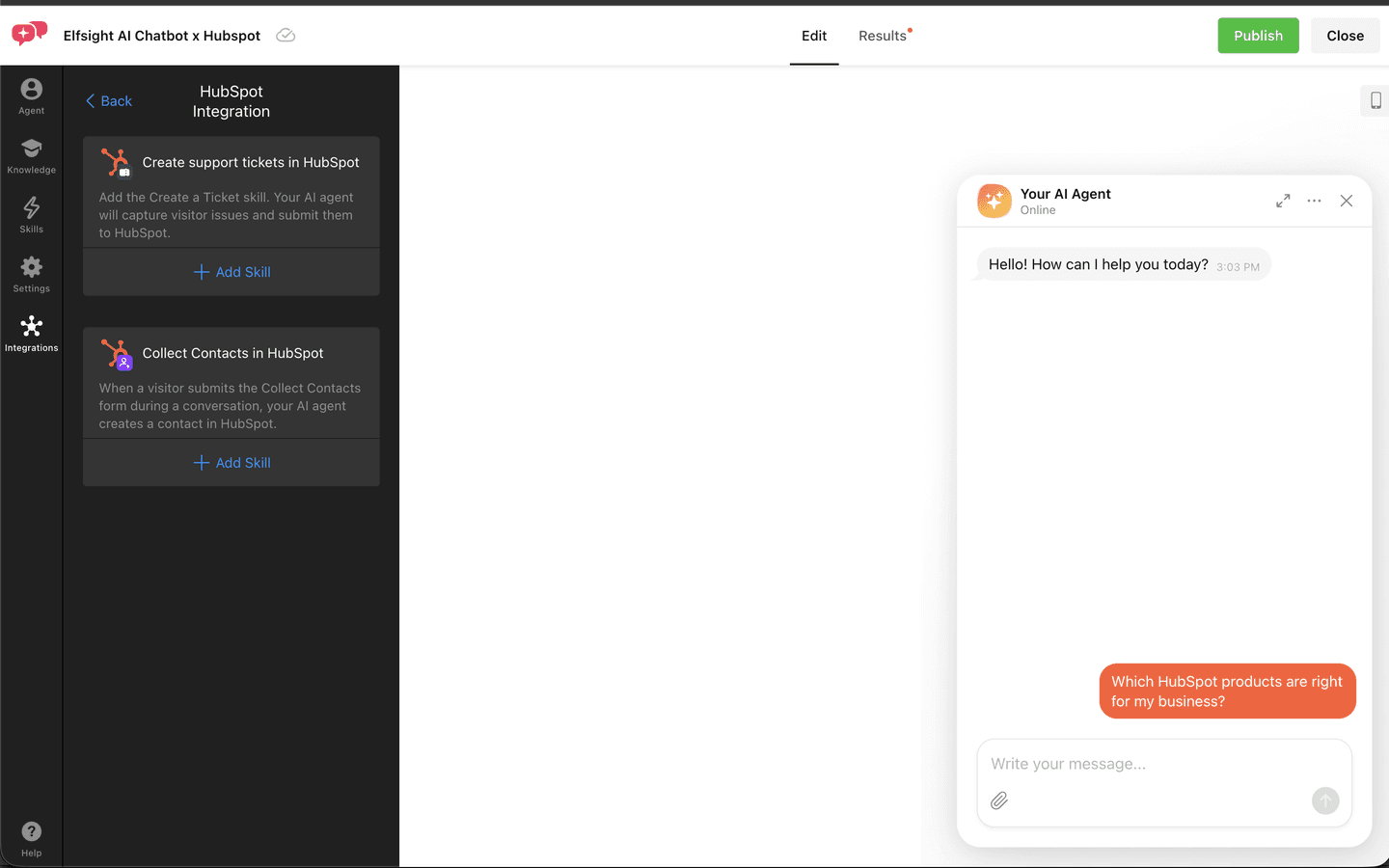
- Under CRM & Marketing, open HubSpot. The page title is HubSpot Integration.
- Click Add Skill under Collect Contacts in HubSpot or under Create support tickets in HubSpot.
- If HubSpot is not connected yet, the page Connect HubSpot opens. Click Connect HubSpot. A HubSpot window opens.
- Approve the permissions, then return to the widget and finish the skill.
From Skills
The side menu item is Skills. The page title is Agent Skills.
- Open Skills and click Add Skill.
- For contacts, choose Collect Contacts, then Connect CRM, then HubSpot. The next page is Connect HubSpot. Click Connect HubSpot.
- For tickets, choose Create a Ticket, then Choose Helpdesk Platform, then HubSpot. If it is not connected, the page title is Connect HubSpot and the button reads Connect to HubSpot.
- Approve the permissions on the HubSpot screen.
Permissions on the consent screen
HubSpot lists the scopes below. The app name on that screen is Elfsight AI Chatbot.
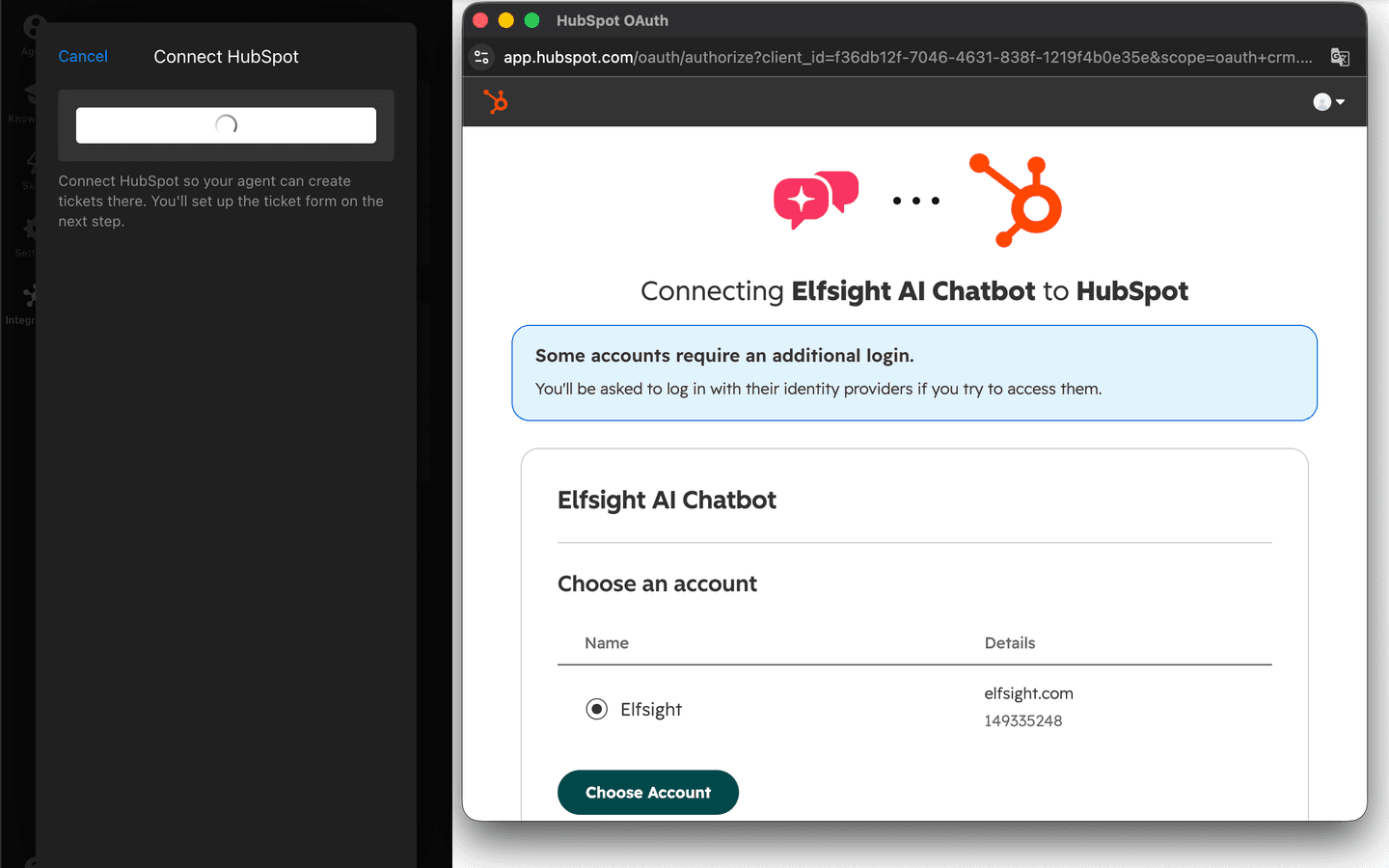
oauth— signs the connection in and keeps it able to refresh.crm.objects.contacts.read— finds an existing contact by email so a second submission does not add a duplicate. If HubSpot answers that the email already belongs to a contact the search missed, the same read is used to open that record.crm.objects.contacts.write— creates a contact, or fills an empty first name, last name, or phone on the contact that was found. Filled fields are left as they are.crm.objects.tickets.read— reads ticket pipelines and their open stages, so Pipeline and Ticket Status can be chosen in the skill. Ticket updates made in HubSpot are not pulled back into the chat.crm.objects.tickets.write— creates the ticket and associates it with the contact.
A name from the form is one field. HubSpot stores firstname and lastname, so the name is split on the first space. “Ada Lovelace” becomes first name Ada and last name Lovelace.
Set up Collect Contacts
Collect Contacts can use a form, or the agent can ask for the details in the chat. Either way, HubSpot receives only name, email, and phone.
- Connect HubSpot with either path in Connect HubSpot, if you have not already.
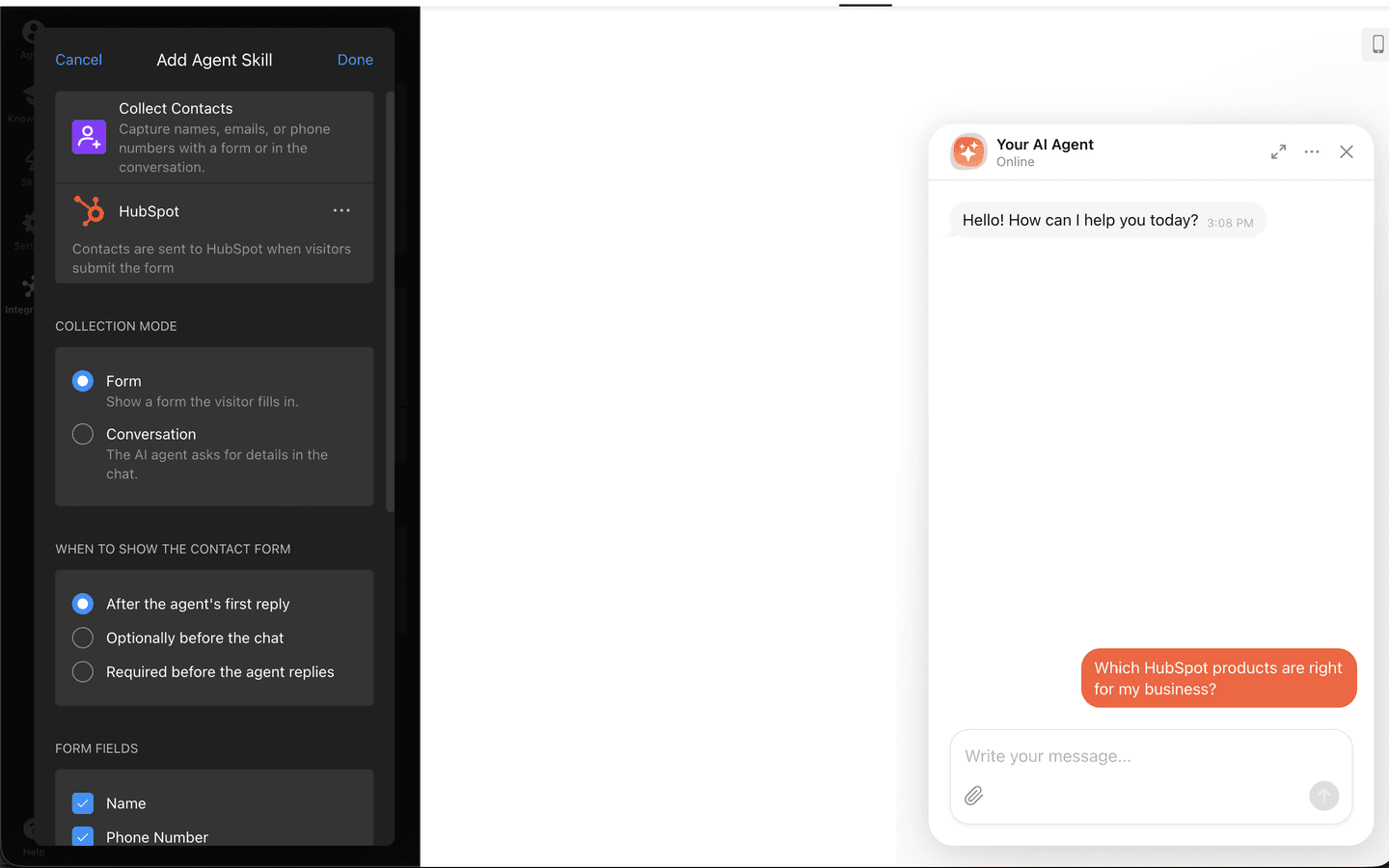
- Open the Collect Contacts skill. The page title while you are adding it is Add Agent Skill. HubSpot should be the selected CRM, with the caption “Contacts are sent to HubSpot when visitors submit the form”.
- Under Form Fields (or Form Questions in conversation mode), turn on the fields you want. The caption on this group says “Only Name, Email and Phone Number are sent to HubSpot.” Turn on Email. Without it the same caption warns that HubSpot may not create a contact.
- Under Collection Mode, choose Form or Conversation, then choose when the form or the questions appear.
- Click Done.
Consent text is not sent to HubSpot. There is no mapping for other custom form fields.
Set up Create a Ticket
- Connect HubSpot with either path in Connect HubSpot, if you have not already.
- Open Create a Ticket. From the HubSpot integration page the row, once the skill is linked, is labeled Create a Ticket Skill.
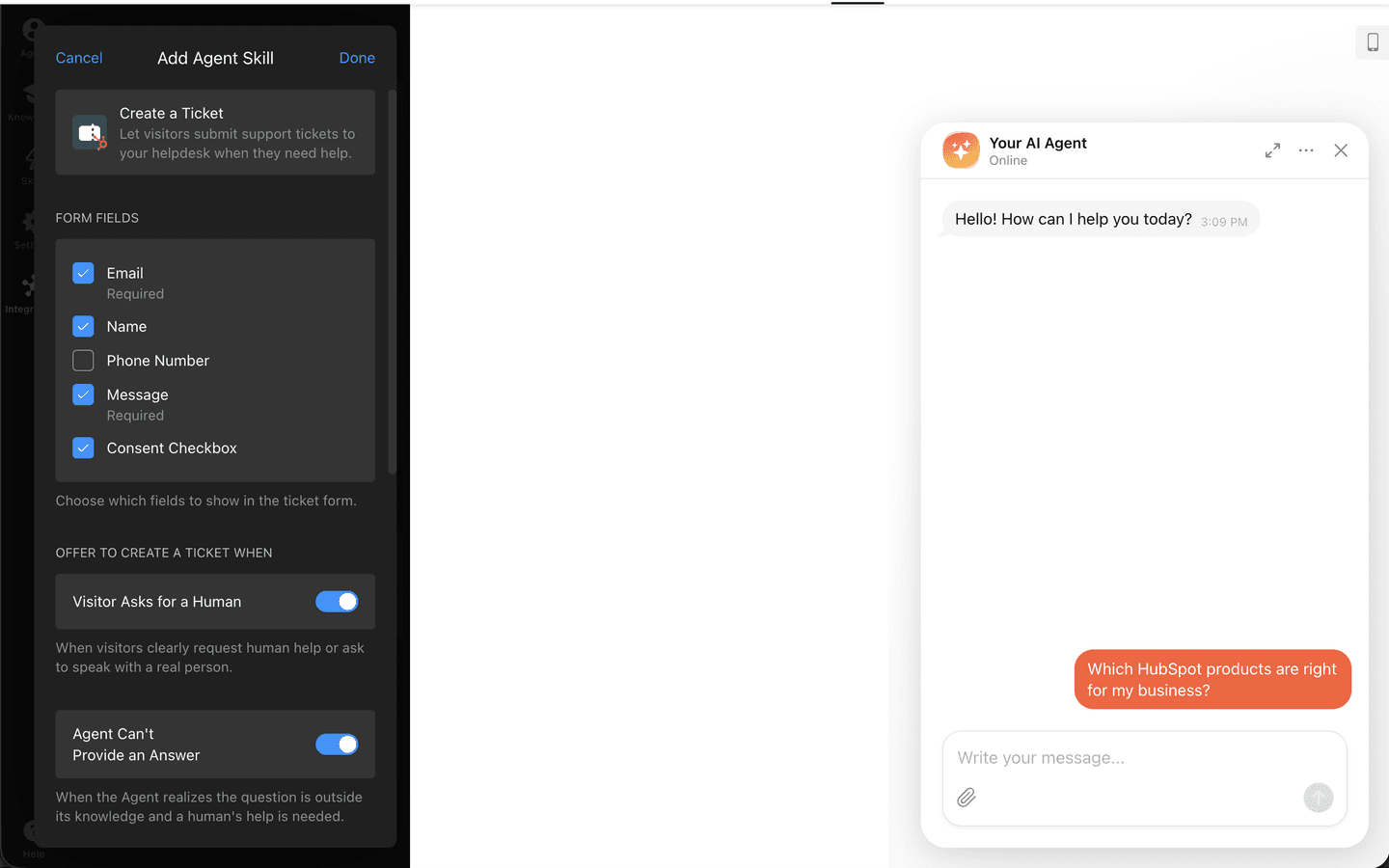
- Under Form Fields, Email and Message are required. Name, Phone Number, and Consent Checkbox are optional.
- Under Offer to create a ticket when, choose the situations. The switches are Visitor Asks for a Human, Agent Can't Provide an Answer, Visitor Says Certain Words, Visitor Dislikes Answer, and Other Situations.
- Under Ticket Settings, choose Pipeline and Ticket Status. Those lists are the open pipelines and stages in your HubSpot account. Turn on Attach Conversation History if the ticket should include the transcript.
- Click Done.
If HubSpot has no open pipeline, the skill shows “No open ticket pipelines found in HubSpot. Add one in HubSpot to start receiving tickets.” A closed stage is not offered for a new ticket. If the stage you saved is later closed or removed, the ticket is created in the first open stage of that pipeline.
What data is synced
Contacts are read and written. The integration looks up a contact by email, then creates one or fills empty fields as described below. Edits you make on the HubSpot contact are not copied back into the chat. Tickets are created in HubSpot only.
| HubSpot object | Sync direction | Data | Scope |
|---|---|---|---|
| Contacts | Read and write | Email. First name and last name, from the form’s Name split on the first space. Phone. An existing contact is matched by email. An empty phone is filled. The name is written only when both first name and last name are empty. A name or phone already stored in HubSpot stays. Consent and any other form fields are not sent. The source page is not a contact property. | crm.objects.contacts.read, crm.objects.contacts.write |
| Tickets | Sync to HubSpot | A new ticket. Subject is the chat topic, or the visitor’s message trimmed to 80 characters. The body starts with that message, then whichever of these exist: Chat topic, AI summary, Source page, and a Dashboard link (left off on a white-label widget). The transcript follows “--- Transcript ---” only when Attach Conversation History is on. The ticket is associated with the contact and placed on the Pipeline and Ticket Status you chose. Changes to the ticket in HubSpot are not sent back. Pipelines are read so those two settings can be filled in. | crm.objects.tickets.read, crm.objects.tickets.write |
Using the integration
One conversation can produce a contact, a ticket, or both.
- A visitor submits the contact form in the chat: name John, email john@elfsight.com, and a phone number.
- HubSpot gets a contact named John with that email. A one-word name is stored as the first name. The source page is not a property on the contact.
- When the visitor asks for a person, the agent opens a ticket and associates it with that contact. The contact record lists it under Tickets.
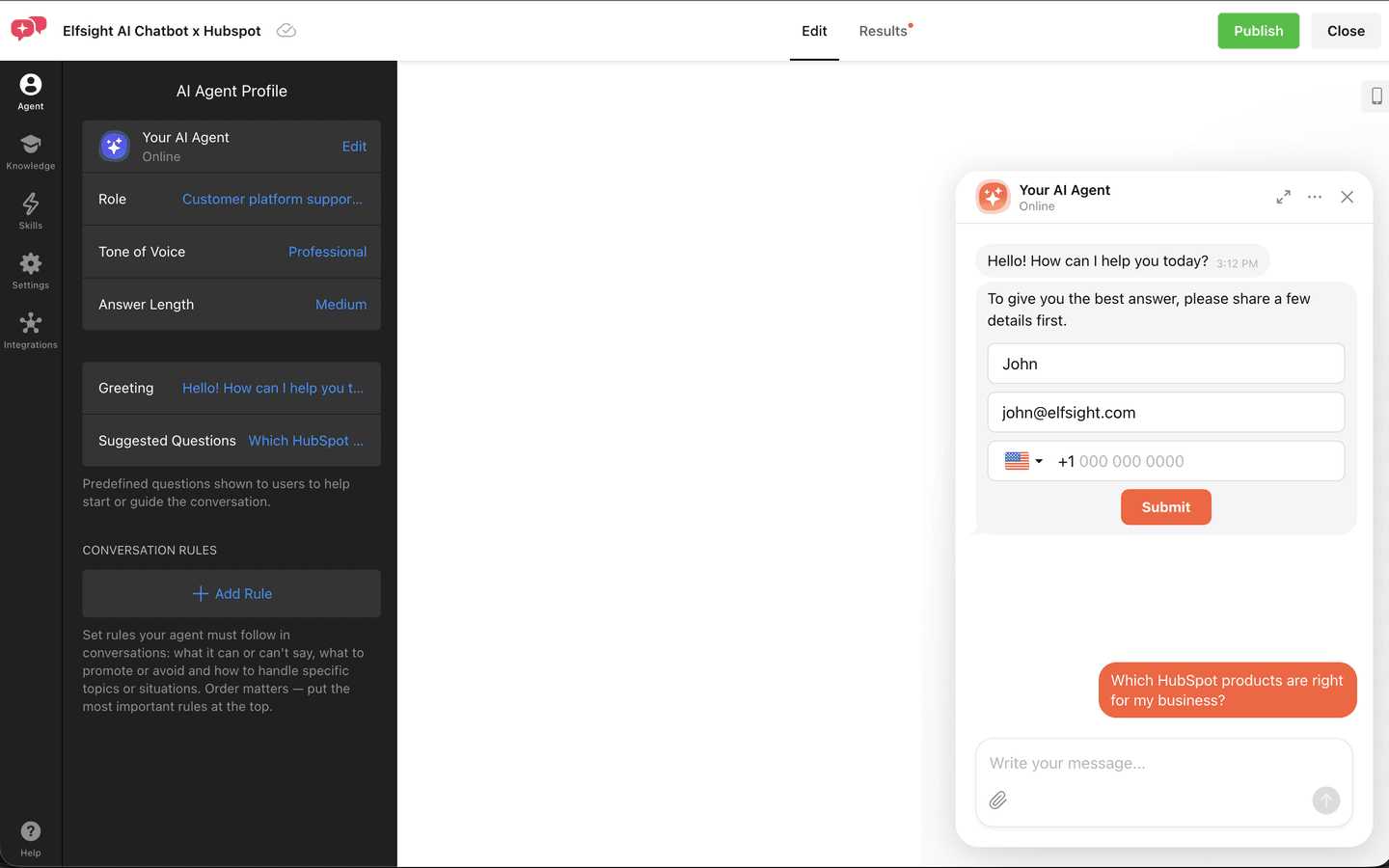
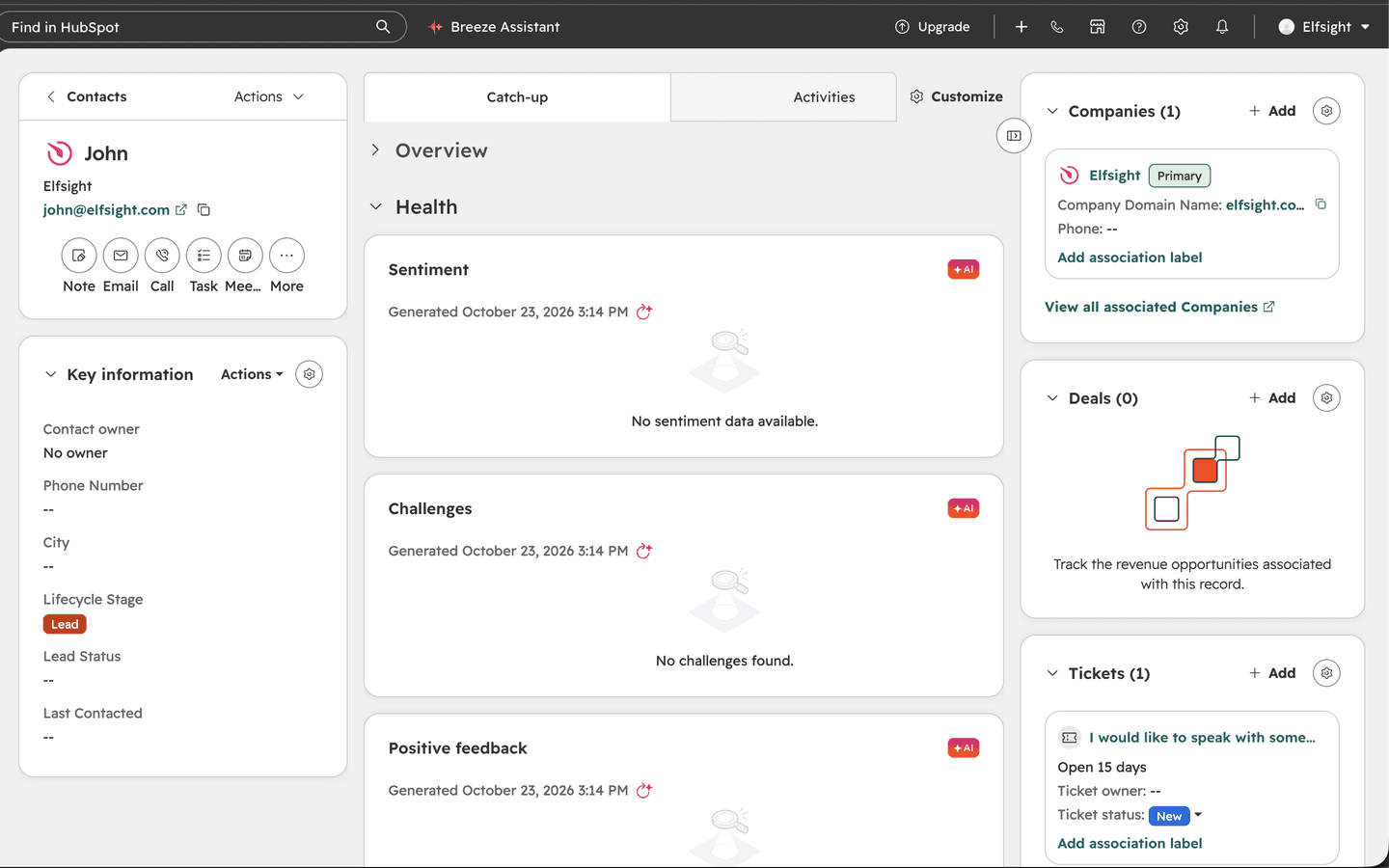
The related ticket is listed on that contact, under Tickets. Its subject is the chat topic, or the visitor’s message trimmed to 80 characters. The body starts with that message, then whichever of these exist: Chat topic, AI summary, Source page, and a Dashboard link (left off on a white-label widget). The transcript follows “--- Transcript ---” only when Attach Conversation History is on. The ticket sits on the Pipeline and Ticket Status chosen in the skill, and it is associated with the contact.
Disconnect HubSpot
Disconnecting in the widget stops new contacts and tickets. Records already in HubSpot stay there. The control is Delete Connection, not a button labeled Disconnect.
- In the widget editor, open Integrations, then HubSpot.
- Under Connection, the connected account is listed as Account. Click Delete Connection.
- Confirm Delete HubSpot connection?. The destructive button is Delete Connection. Cancel leaves the connection in place.
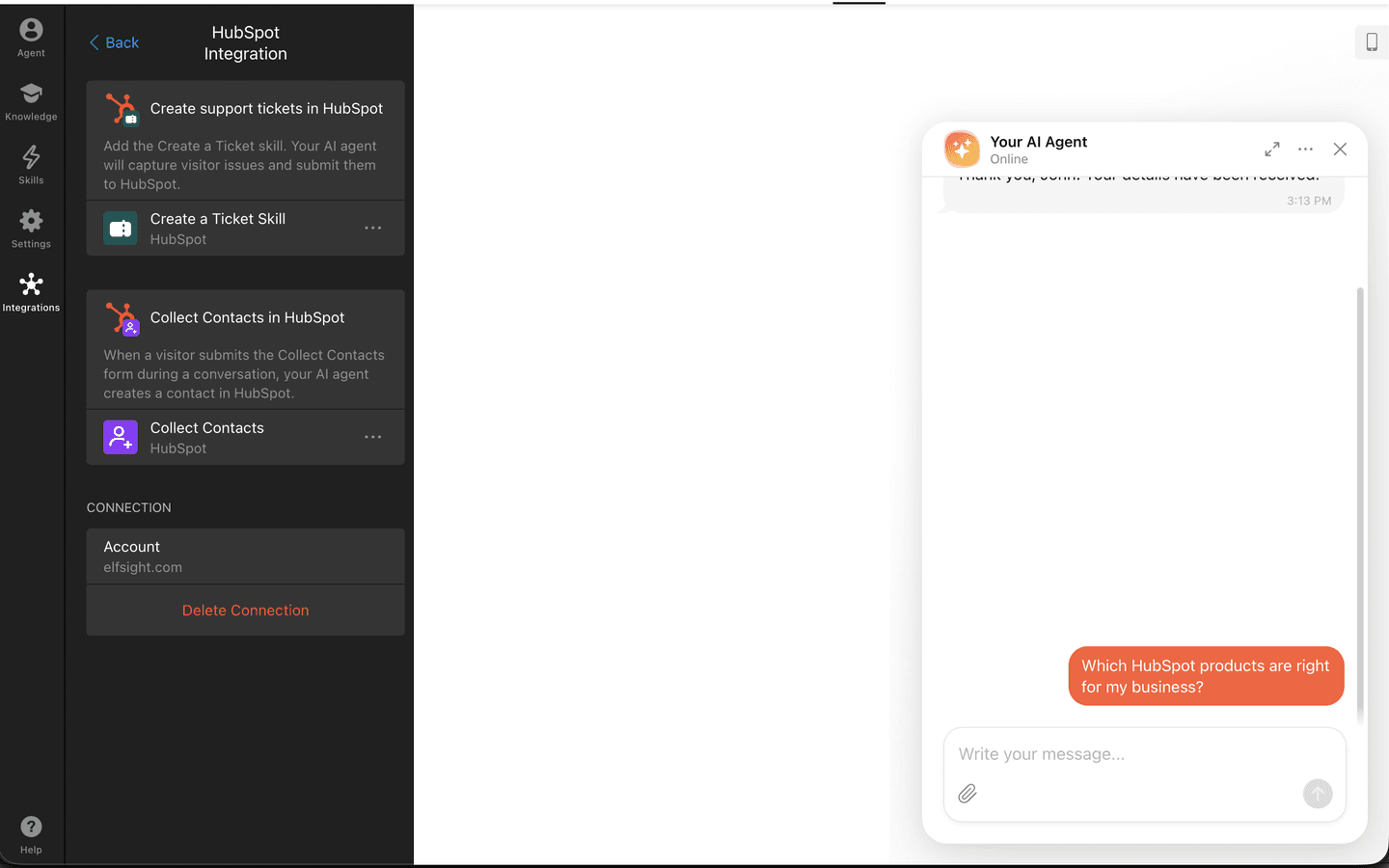
What the confirmation removes depends on which skills are linked:
- Create a Ticket linked to HubSpot is removed.
- Collect Contacts stays, but contacts are no longer sent to HubSpot.
- If neither skill is linked, the agent is simply no longer connected to HubSpot.
To stop contacts only, and keep the HubSpot connection: on the Collect Contacts skill, or on the HubSpot integration page, use Disconnect. The confirmation is Disconnect Collect Contacts from HubSpot?. Contacts will no longer be sent. The skill and the HubSpot connection stay.
Uninstall the app from HubSpot
Uninstalling removes Elfsight AI Chatbot from the HubSpot account. Contacts and tickets already created stay in HubSpot. Syncing stops: the saved connection can no longer refresh, and the next send fails until you connect again.
- In HubSpot, open settings. In the left sidebar, go to Integrations → Connected apps.
- On Elfsight AI Chatbot, click Actions, then Uninstall.
- In the dialog, type uninstall and click Uninstall.
Connected apps lists Elfsight AI Chatbot with the account’s other installed apps. HubSpot’s own article on connecting and uninstalling apps is Connect apps to HubSpot. After you uninstall, delete the leftover connection in the widget (Disconnect HubSpot) before you connect again.
Troubleshooting
Contacts are not created
Collect Contacts has to be linked to HubSpot, and the submission needs an email or a phone number that contains a digit. An invalid email is dropped. A value longer than 255 characters is dropped. If nothing reachable remains, no contact is created. The skill warns “Turn on Email — without it HubSpot may not create a contact.” If the connection was removed, the skill shows “HubSpot is not connected, so contacts are not being sent. Use Change CRM to connect it again.”
Tickets are not created
The account needs an open ticket pipeline, and the form needs a message plus an email or phone so a contact can be associated. If pipelines fail to load, the skill shows “Couldn't load pipelines from HubSpot. Try reopening this page.” A second submit of the same ticket while the first is still being created is ignored, so it does not add a duplicate ticket.
Insufficient permissions
The person who clicks connect must be able to install an app (Super Admin or App Marketplace access) and to create contacts and tickets. If they close the HubSpot window or the sign-in fails, HubSpot is not connected. The widget can show “Something went wrong while connecting HubSpot. Please try again.” Open Connect HubSpot and grant the scopes again.
Duplicate contacts
With an email, the integration looks up that email and does not create a second contact. Without an email, lookup does not run, so each phone-only submission can create a new contact. A name or phone already stored on the matched contact is not replaced.
Reconnecting
In the widget, open Integrations → HubSpot → Delete Connection, then connect again and approve the same permissions. Do this after an uninstall in HubSpot as well. The old refresh token no longer works.
Support
Email support@elfsight.com, or use the Elfsight Help Center.