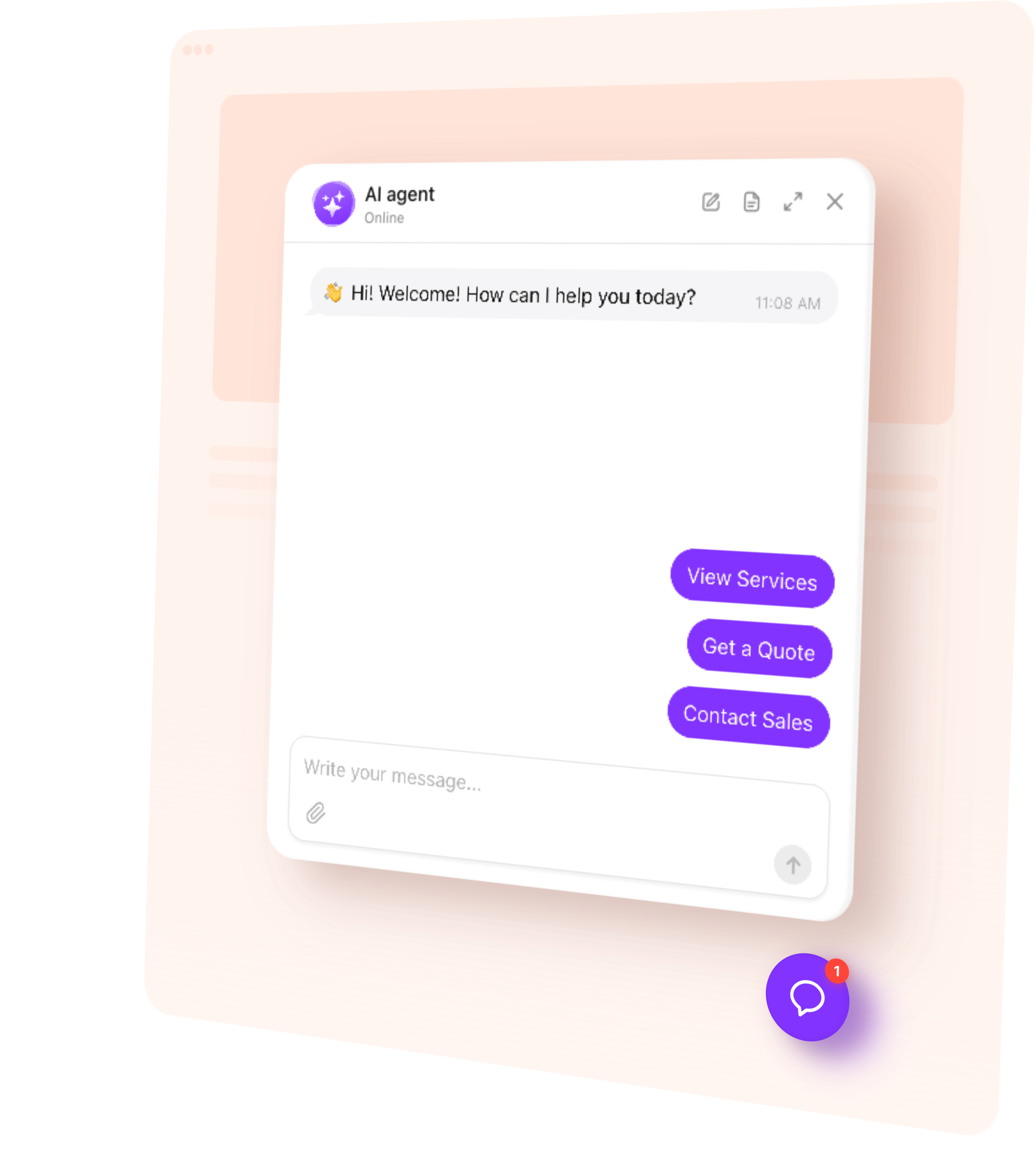
AI Chatbot helps shoppers find the right products, get answers, and contact your team — 24/7. Add it to your OpenCart store to explain product details, handle common questions, and capture inquiries while customers explore your catalog.
Give customers the information they need before they decide to buy.
Explain options — Help shoppers compare features, sizes, and intended uses.
Answer buying questions — Clarify delivery, returns, and other store policies.
Collect inquiries — Capture details for product advice, quotes, and follow-up.
Stay available — Help customers when your team is busy or offline.
Try AI Chatbot on Your OpenCart Store for Free
Enter your domain → Customize your chatbot → Add it to your website.
1. Enter your website
2. Create AI agent
3. Add to website
AI Chatbot Features for OpenCart
1.
Automatic setup. Enter your public store URL. The chatbot uses accessible content to build its initial knowledge and suggest a role and tone of voice.
2.
Answers from your content. Train the chatbot with product information, store policies, uploaded files, and custom Q&A.
3.
Conversation rules. Define how the chatbot guides shoppers, presents your offer, and responds when someone needs personal assistance.
4.
Flexible appearance. Match the chatbot’s colors, name, and avatar to your storefront. Add a greeting and suggested questions that fit your customers.
5.
Multilingual conversations. Help customers ask questions and understand your offer in their language.
Train Your AI Chatbot on Store Content
Use the information customers already look for in your store. Add public product URLs, buying guides, and OpenCart Information pages, then fill any gaps with files or custom Q&A.
Product pages — Published specifications, materials, sizes, and intended uses.
Buying guides — Differences between options and what to consider before buying.
Delivery and returns pages — Shipping terms, return conditions, and how to request help.
About and contact pages — Store details, opening hours, locations, and contact options.
Files and custom Q&A — Compatibility information, care instructions, and detailed answers.
Add up to 200 web page URLs. For a larger catalog, prioritize products and guides that answer common questions. Use Retrain after updating a source page, and add new URLs when needed. The chatbot’s knowledge does not automatically synchronize with your OpenCart catalog.
Help customers move from a question to a useful next step.
Guide product selection — Use the product details in your knowledge base to help shoppers compare options. Offer a relevant product link so they can review the item and continue shopping in OpenCart.
Capture a sales inquiry — Ask for a name, email, or phone number when someone needs advice, a quote, or information about a larger purchase. Save the details with the conversation for follow-up.
Book a consultation — Connect Calendly or Cal.com so customers can choose a time for product advice or a service appointment directly in the chat.
Offer human contact — Provide email, phone, or WhatsApp contact when your team needs to check an order or answer a question that requires personal attention.
Follow up during a visit — Send a message after a period of inactivity to ask whether the shopper needs more information or help choosing a product.
Match your OpenCart theme with custom colors, a recognizable name and avatar, and a greeting and suggested questions such as “Help me choose a product” or “How do returns work?” Use a floating chat bubble to keep help within reach or an embedded chat window in a dedicated store section. Preview the appearance and check that the chat fits alongside your navigation, cart controls, and promotional banners on desktop and mobile.
Track AI Chatbot Conversations and Leads
See which questions shoppers ask before they buy or contact your team.
Conversations — Review chat histories and summaries to understand customer needs.
Leads — Find submitted contact details alongside the inquiry for more informed follow-up.
Analytics — Track chat sessions, messages, and collected leads in the dashboard.
Review knowledge gaps to find missing product details or unclear policies, then improve the information your chatbot can use.
How to Add an AI Chatbot to OpenCart — Follow this quick guide to install the chatbot through a page layout or shared theme template. If you need help, our support team offers free installation.
Add the chatbot to a page layout
1.
In the intuitive editor create your chatbot and copy the installation code from the dashboard.
2.
In OpenCart, open Extensions → Extensions and choose Modules.
3.
Create an HTML Content module. Name it, paste the code in the description’s source view, enable it, and save.
4.
Open Design → Layouts and edit the relevant layout, such as Home, Category, or Product.
5.
Add your module in the desired position, save, and test the matching storefront pages.
A layout can cover multiple pages. Check its routes and assignments to control where the chatbot appears.
Add a floating chatbot through the theme
1.
For themes using Twig templates, open Design → Theme Editor and locate common/footer.twig in the active theme.
2.
Paste the installation code before the opening <footer> tag, following our installation guide.
3.
Save and test pages that use this footer.
Tip: OpenCart versions and custom themes can use different editing tools. Our support team can help choose the right method and check the chat after installation.
One widget, one snippet. Squarespace, Wix, WordPress, Webflow, Shopify, GoDaddy, Elementor, or plain HTML — pick another platform to see how it installs there.
You can use an existing HTML Content module or your theme to add the chatbot’s embed code. AI Chatbot also offers a custom installation module for OpenCart 2.x and 3.x. That module helps place the widget; it does not connect the chatbot to private store data. Ask support which method fits your version and theme.
Yes, AI Chatbot offers a free plan. It includes one chatbot, 50 visitor messages per month, and 200 monthly widget views, no credit card required. Test common shopping questions before adding the chatbot to your store.
The chatbot can explain your delivery and return policies and link customers to the relevant account page, return form, or support contact. The standard setup does not access private order records, approve returns, or issue refunds.
Yes. Add the HTML Content module to the relevant OpenCart layout and check its route and store assignments. Test several matching pages because one layout may cover an entire page type. If you also installed the chatbot in the shared footer, remove overlapping placement to avoid loading it twice.
Yes, but check the installation and content for each storefront. A shared chatbot can work where products, policies, and contact details are the same. For stores with different offers or rules, consider separate chatbots and check your plan’s limit. Multi-store settings do not automatically separate the chatbot’s knowledge.