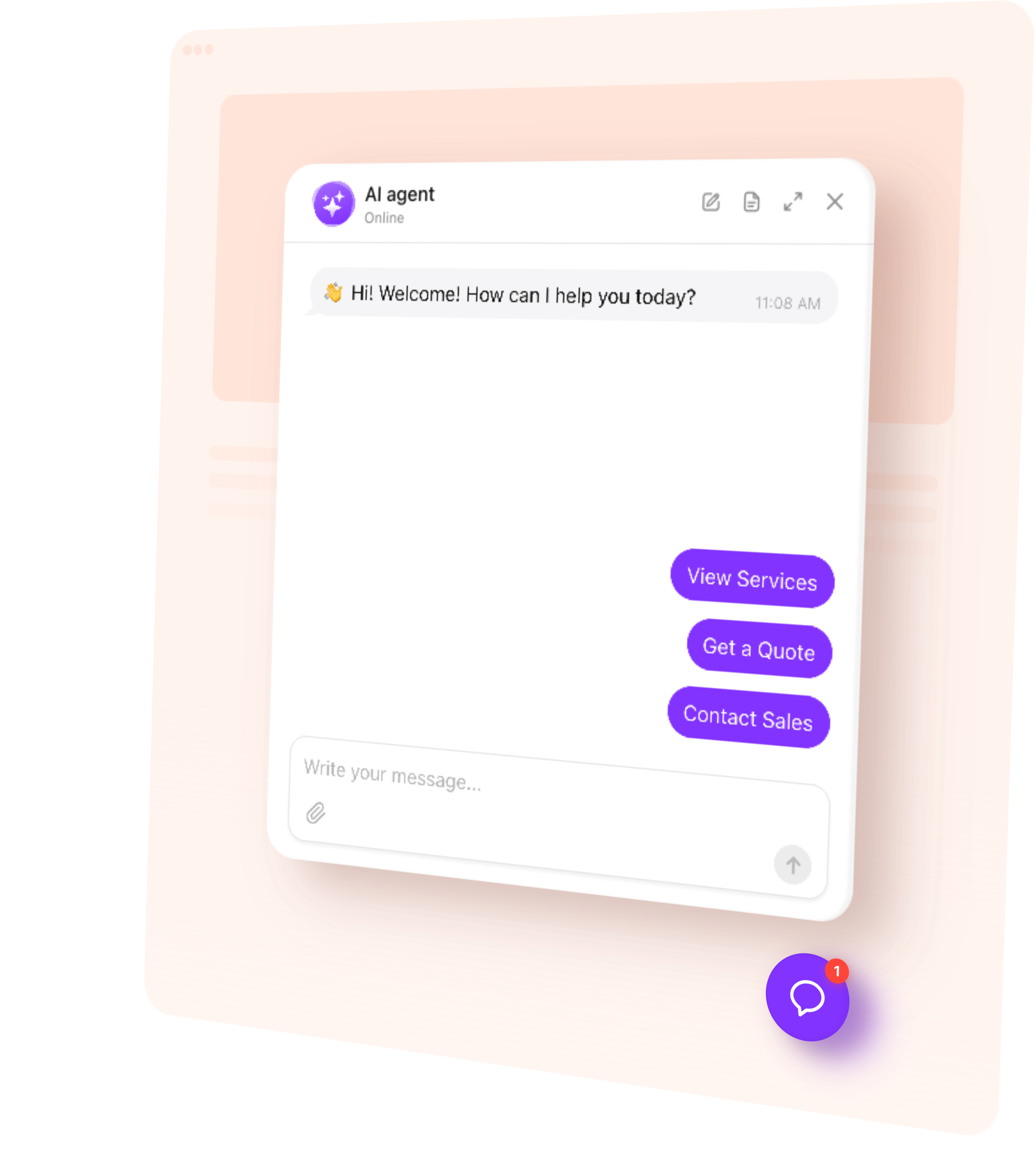
AI Chatbot answers reader questions, points visitors to helpful content, and collects inquiries on your Blogger website — 24/7. Let visitors explore your expertise and ask about your services while they’re on your blog.
Help people move from reading your content to asking questions and getting in touch.
Answer readers — Explain topics and services using the information you provide.
Guide discovery — Point visitors toward relevant articles, resources, or service pages.
Collect inquiries — Capture contact details for consultations and collaboration requests.
Stay available 24/7 — Help readers when you’re writing, working with clients, or offline.
Try AI Chatbot on Your Blogger Website for Free
Enter your domain → Customize your chatbot → Add it to your website.
1. Enter your website
2. Create AI agent
3. Add to website
AI Chatbot Features for Blogger
1.
Automatic setup. Enter your blog URL. The chatbot uses accessible content to build its initial knowledge and suggest a role and tone of voice.
2.
Answers from your content. Help readers understand the topics you cover, your services, or how to work with you using published pages and information you add.
3.
Conversation rules. Define how the chatbot represents your blog, explains your offer, and handles questions that need a personal reply.
4.
Flexible placement. Add a chat box to a dedicated page or offer a floating chatbot across your blog so readers can ask questions as they browse.
5.
Multilingual conversations. Let readers ask questions and receive answers in their language, including visitors discovering your articles from abroad.
Train Your AI Chatbot on Blog Content
Use your articles and business information to help readers get useful answers. Add public page URLs, upload files, or write custom Q&A for details you haven’t published.
Published blog posts — Topics, advice, and explanations covered in your articles.
About and contact pages — Your background, areas of expertise, and ways to get in touch.
Service and consultation pages — What you offer, who it suits, and how to get started.
FAQ and resource pages — Common reader questions and information about available resources.
Files and custom Q&A — Collaboration guidelines, consultation details, and answers missing from your blog.
Add up to 200 web page URLs. Choose the individual posts and pages you want the chatbot to use. Add new post URLs as you publish, and use Retrain after changing an existing source.
Give visitors a next step when they want to learn more or work with you.
Share a useful link — Show an action button linking to a relevant article, resource page, or service description on your blog.
Collect an inquiry — Ask for a name, email, or phone number when a reader wants a consultation or has a collaboration request. Keep their details with the conversation.
Book a consultation — Connect Calendly or Cal.com so readers can choose an available appointment time directly in the chat.
Offer personal contact — Provide email, phone, or WhatsApp contact when someone needs your advice or wants to discuss a specific project.
Follow up during the visit — Send a message after a period of inactivity to ask whether the reader needs more information or help taking the next step.
Match the chatbot’s colors to your blog and choose its name and avatar to reflect your identity or business. Select a floating bubble or embedded chat window and adjust its placement to keep it accessible alongside your posts. Add a greeting and suggested questions such as “What topics do you cover?” or “Can I book a consultation?” to make starting a conversation easy.
Track AI Chatbot Conversations and Inquiries
Learn what readers want to know after discovering your content.
Conversations — Read chat histories and summaries to understand reader questions.
Leads — Review submitted contact details with each conversation before following up.
Analytics — Track chat sessions, messages, and collected leads to see how visitors use the chatbot.
Use knowledge gaps to find questions your existing content doesn’t answer. Add the missing information or use those questions as ideas for future posts.
How to Add an AI Chatbot to Blogger
Follow this quick guide to install your chatbot on a page or across your blog through its theme. If you need help, our support team offers free installation.
Add a chat box to a specific Blogger page
1.
Copy your chatbot’s installation code from the dashboard.
2.
Open Pages in Blogger and select the page you want to edit.
3.
Switch the editor to HTML view and paste the code where you want the embedded chat window.
4.
Update or publish the page, then open it to test the chatbot.
Add a floating chatbot across your blog
1.
Open Theme → Edit HTML from your theme’s menu.
2.
Use the Blogger-specific theme code from the installation guide, replace its widget ID placeholder with your chatbot’s ID.
3.
Insert it before the closing </body> tag.
4.
Save the theme and check the live blog.
Tip: Save a backup of your theme before editing it. Our support team can help adapt the code and check its placement on desktop and mobile.
One widget, one snippet. Squarespace, Wix, WordPress, Webflow, Shopify, GoDaddy, Elementor, or plain HTML — pick another platform to see how it installs there.
Yes. Choose the embedded chat window layout and add the installation code through a page’s HTML view. For help that stays accessible as readers browse your blog, choose a floating layout and use the theme installation method above.
Yes. AI Chatbot’s free plan includes one chatbot, 50 visitor messages per month, and 200 monthly widget views. There’s no time limit or credit card required. You can configure the chatbot and test its answers before adding it to your blog.
Yes. You can add the chatbot to a Blogger blog using a blogspot.com address or a connected custom domain. You need access to the page or theme where you’ll insert the code. Test the chatbot on the published blog after installation.
No. Publishing a new Blogger post does not automatically add it to the chatbot’s knowledge. Add the new post URL, and use Retrain when you update a page already in the knowledge base. You can also provide information through files and custom Q&A.
AI Chatbot is an assistant for people visiting your blog. It answers their questions using the knowledge you provide, shares useful links, and collects inquiries. It does not write or publish posts in your Blogger account through the standard setup.