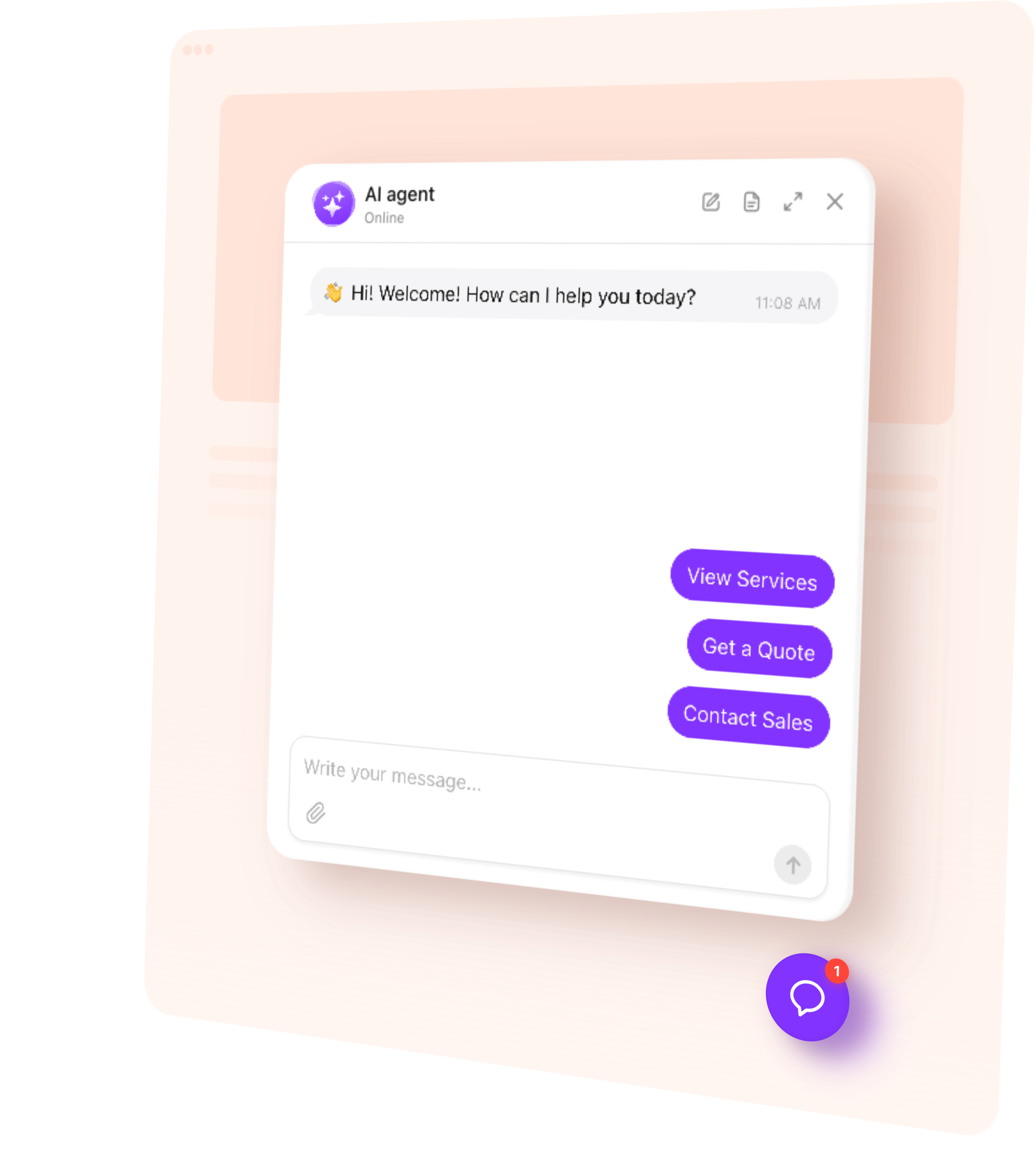
AI Chatbot answers questions, guides visitors to useful information, and collects inquiries on your Google Sites website — 24/7. Add an embedded chat window to help people understand your offerings and take the next step.
Give people a simple way to ask questions while they explore your website.
Explain your offer — Answer questions about services, programs, and requirements.
Guide visitors — Point people toward helpful resources and relevant pages.
Collect leads — Capture contact details for consultations and follow-up.
Stay available 24/7 — Help visitors when your team is busy or offline.
Try AI Chatbot on Your Google Sites Website for Free
Enter your domain → Customize your chatbot → Add it to your website.
1. Enter your website
2. Create AI agent
3. Add to website
AI Chatbot Features for Google Sites
1.
Automatic setup. Enter your public website URL. The chatbot uses accessible content to build its initial knowledge and suggest a role and tone of voice.
2.
Answers from your content. Explain your services, published guidance, and FAQs using website pages and information you provide.
3.
Conversation rules. Define how the chatbot represents your organization, guides visitors, and responds when a question needs a personal answer.
4.
Flexible appearance. Match the chat window’s colors, name, and avatar to your website. Add a greeting and suggested questions that fit your audience.
5.
Multilingual conversations. Let visitors ask questions and receive answers in their language, including people discovering your organization from abroad.
Train Your AI Chatbot on Google Sites Content
Give visitors answers based on the information you already share. Add public page URLs, upload files, or write custom Q&A for details that aren’t on your website.
Service and program pages — Available options, what’s included, and how to get started.
Resource and FAQ pages — Published instructions, useful explanations, and common questions.
About and contact pages — Your organization, opening hours, locations, and contact options.
Event information pages — Published schedules, participation details, and registration steps.
Files and custom Q&A — Preparation guides, detailed instructions, and answers missing from your site.
Add up to 200 web page URLs. Use accessible published pages as sources. After updating a page, use Retrain to refresh its content in the chatbot’s knowledge.
Open a useful resource — Show an action button linking to a service page, resource, or existing Google Form for registration or inquiries.
Collect contact details — Ask for a name, email, or phone number when someone needs more information. Keep their details with the conversation for follow-up.
Book a consultation — Connect Calendly or Cal.com so visitors can choose an available appointment time directly in the chat.
Offer human contact — Provide email, phone, or WhatsApp contact when a visitor needs personal assistance from your team.
Follow up during the conversation — Send a message after a period of inactivity to ask whether the visitor needs more information or help with the next step.
Match the chat window’s colors to your Google Sites theme and choose its name and avatar to represent your organization. Customize the greeting and suggested questions to introduce what visitors can ask, such as “Which service do I need?” or “How do I register?” Use the embedded chat window layout and give it enough space in your page design for comfortable reading and typing.
Track AI Chatbot Conversations and Leads
Understand what visitors need before they register, book, or contact your team.
Conversations — Read chat histories and summaries to see which questions people ask.
Leads — Review submitted contact details with each conversation for a more informed follow-up.
Analytics — Track chat sessions, messages, and collected leads in the dashboard.
Review knowledge gaps to find questions your content doesn’t answer, then add the missing information.
How to Add an AI Chatbot to Google Sites
Follow this quick guide to add an embedded chat window to an existing page or create a dedicated chat page. If you need help, our support team offers free installation.
Embed the chatbot in an existing page
1.
Select the embedded chat window layout in the editor and once customized copy its installation code from the dashboard.
2.
Open your website in Google Sites and choose the page.
3.
Select Insert → Embed → Embed code, paste the code, and click Next → Insert.
4.
Resize the embed, publish your changes, and test the live page.
Create a dedicated chat page
1.
In Pages, open the Add menu.
2.
Choose Full page embed.
3.
Name the page, add the chatbot through Embed code, and publish.
Visitors can open this page from your website navigation whenever they need help.
Tip: Google Sites keeps the chatbot inside its embed area. Check the window size on desktop and mobile so messages and the input field remain easy to use.
One widget, one snippet. Squarespace, Wix, WordPress, Webflow, Shopify, GoDaddy, Elementor, or plain HTML — pick another platform to see how it installs there.
Yes, AI Chatbot’s free plan includes one chatbot, 50 visitor messages per month, and 200 monthly widget views. There’s no time limit or credit card required. Configure your chatbot and test its answers before adding it to your website.
Google Sites embeds content inside a separate frame. The supported setup is an embedded chat window within a page or a dedicated chat page. A floating bubble cannot sit over the whole Google Sites website as it can on platforms that allow direct script installation.
Don’t assume that adding your Google Sites URL also imports the contents of embedded Drive files. Provide the relevant information separately through supported file uploads, text, or custom Q&A, then test the chatbot’s answers. Restricted documents are not accessible simply because you can view them while signed in.
Website access and chatbot knowledge are separate. A restricted site URL may not be available for automatic training, so provide suitable information directly in the editor. Do not assume that Google account permissions or Drive sharing settings restrict individual chatbot answers; use information appropriate for everyone who can access the chatbot.
Yes. Configure an action button linking to your Google Form for registration, feedback, or an inquiry. The chatbot can also collect contact details through its own lead form. Linking to a Google Form does not automatically transfer chat messages or captured leads into that form or a Google Sheet.
Yes, if you want a chat window on multiple pages, add an embed to each one. Alternatively, create one dedicated chat page and make it easy to find in your site navigation. Manage the chatbot’s knowledge and settings in the dashboard after installation.