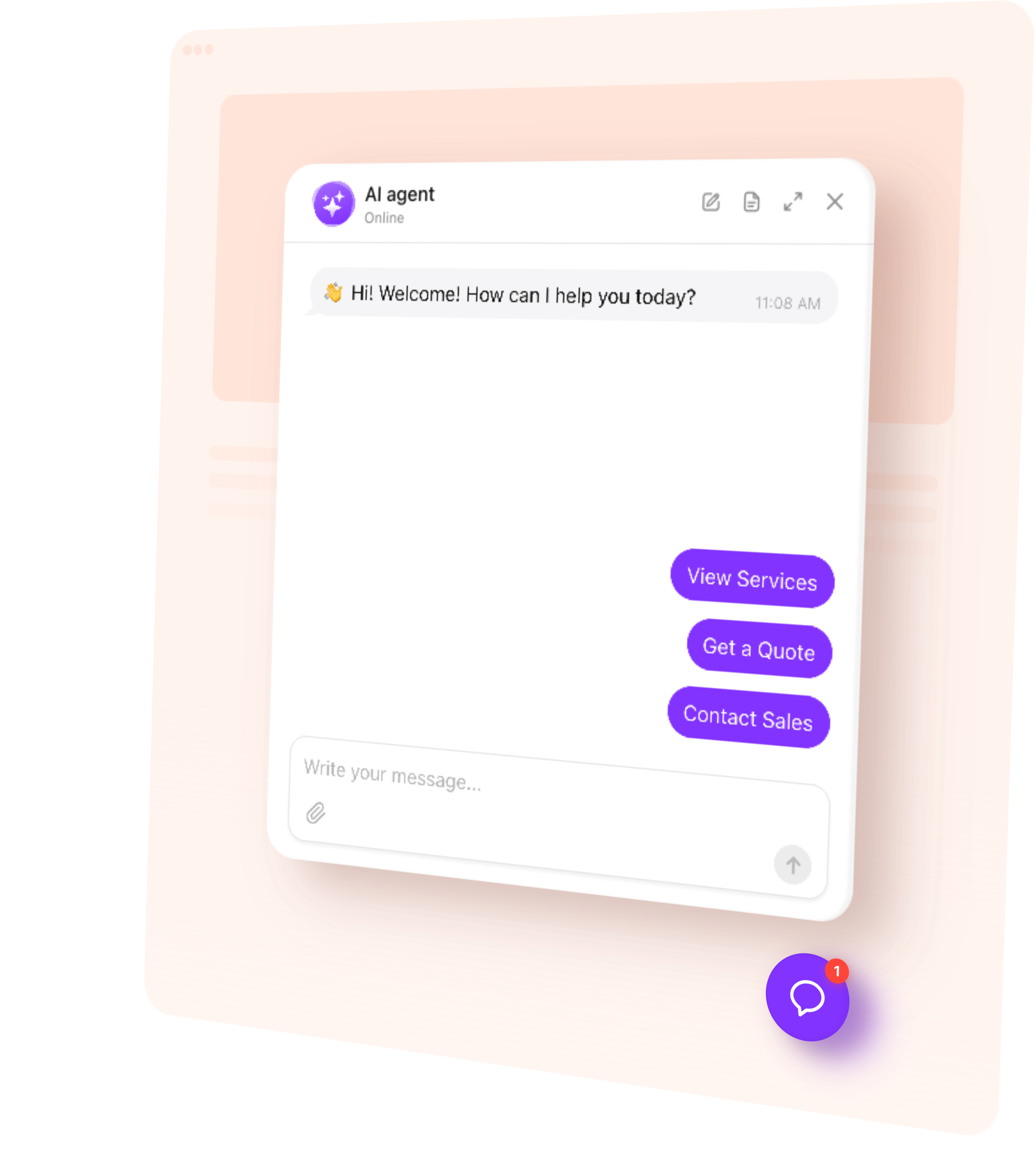
AI Chatbot answers customer questions, collects inquiries, and helps visitors take the next step on your Jimdo Creator website 24/7. Explain your services, guide shoppers, or offer a consultation while you focus on business.
Give visitors the answers they need to decide, book, or get in touch.
Explain your offer — Help people understand services, products, and pricing.
Guide decisions — Point visitors to relevant options and useful pages.
Capture interest — Collect contact details while someone is considering your business.
Stay available — Answer routine questions outside your working hours.
Try AI Chatbot on Your Jimdo Website for Free
Enter your domain → Customize your chatbot → Add it to your website.
1. Enter your website
2. Create AI agent
3. Add to website
AI Chatbot Features for Jimdo
1.
Automatic setup. Enter your public website URL. The chatbot uses accessible content to build its initial knowledge and suggest a role and tone of voice.
2.
Answers from your content. Give visitors information based on your website pages, uploaded files, and custom Q&A.
3.
Conversation rules. Set how the chatbot introduces your business, responds to questions, and offers the next step.
4.
Flexible appearance. Customize colors, name, and avatar to match your Jimdo website. Add a greeting and suggested questions to make starting a conversation easier.
5.
Multilingual conversations. Help visitors ask questions and understand your offer in their language.
Train Your AI Chatbot on Business Content
Use the information you already share with customers. Add public page URLs, upload files, and write custom answers for details that need more explanation.
Service pages — What you offer, who each service is for, and how to request a quote.
Product pages — Published product details, available options, and intended uses.
Delivery and returns pages — Shipping terms, return conditions, and how to contact your team.
Portfolio and about pages — Your experience, project examples, and the work you take on.
Files and custom Q&A — Preparation instructions, detailed service information, and common questions.
Add up to 200 web page URLs. After changing a source page in Jimdo, use Retrain to refresh that content in the chatbot’s knowledge. Add new URLs when you expand your website.
Turn a useful answer into an action your visitor can take.
Collect a request — Ask for a name, email, or phone number when someone wants a quote or more information. Save their details with the conversation so your team has context for the reply.
Open a relevant page — Show an action button leading to a service, product, portfolio example, or contact page on your Jimdo website.
Book a consultation — Connect Calendly or Cal.com so visitors can choose an available appointment time directly in the chat. For another booking service, offer a link to its booking page.
Offer human contact — Provide email, phone, or WhatsApp contact when a visitor needs a personal answer from your team.
Follow up during a visit — Send a message after a period of inactivity to ask whether the visitor needs more information or help with the next step.
Match your Jimdo website with custom colors, a recognizable name and avatar, and a greeting and suggested questions that fit your business. Choose a floating chat bubble to keep help within reach or an embedded chat window for a dedicated section of a service or contact page. Preview the appearance before installation and check that the chat fits your layout on desktop and mobile.
Track AI Chatbot Conversations and Leads
See what visitors need before they contact your business.
Conversations — Review chat histories and summaries to understand common questions.
Leads — Find submitted contact details alongside each conversation for more informed follow-up.
Analytics — Track chat sessions, messages, and collected leads in the dashboard.
Use knowledge gaps to find unanswered questions, then add the missing information to your chatbot.
How to Add an AI Chatbot to Jimdo
Follow this quick guide to install the chatbot on your Jimdo Creator website. Choose an embedded window or a floating chat bubble. If you need help, our support team offers free installation.
Embed the chatbot on a page
1.
Choose the embedded chat window layout and customize it.
2.
Copy the installation code from the dashboard.
3.
Open your website in Jimdo Creator and choose the page.
4.
Select Add Element → More Elements and Add-ons → Widget / HTML.
5.
Paste the code, save, and open the live page to test the chatbot.
To repeat an embedded window across pages, place its code in a shared section that appears throughout your website.
Add a floating chatbot
1.
Open Menu → Settings → Edit Head in Jimdo Creator.
2.
Add a special script with your widget ID.
3.
Save and test the chat on your live website.
Tip: Jimdo Creator and Jimdo Website Builder have different editing tools. If you cannot find Widget / HTML or Edit Head, ask our support team to check which setup your website supports.
One widget, one snippet. Squarespace, Wix, WordPress, Webflow, Shopify, GoDaddy, Elementor, or plain HTML — pick another platform to see how it installs there.
Installation is supported on Jimdo Creator, which lets you add custom code. Jimdo Website Builder, also known as Dolphin, does not support custom HTML, scripts, or external widgets. Check which editor your website uses before planning the installation.
Yes, with AI Chatbot’s free plan, you have access to one chatbot, 50 visitor messages per month, and 200 monthly widget views. There is no time limit or credit card required. You can set up the chatbot and test its answers before installing it on Jimdo Creator.
Yes. Connect Calendly or Cal.com for booking directly in the conversation. If you already use another booking tool with Jimdo, add an action button linking to its booking page. Adding the chatbot does not automatically connect it to your existing booking system.
Use Retrain after changing an existing source page, and add new URLs when needed. You can also update files and custom Q&A in the dashboard. Test a few related questions afterward to check that the chatbot uses the revised information.
Usually, no. Save or publish changes to the existing chatbot in its dashboard, and they will appear through its installed code. Switching between an embedded window and a floating layout may require a different Jimdo installation method.