
AI Chatbot Features for jQuery Websites
Turn jQuery Website Visits into Leads
Help visitors understand your offer and get the information they need to act.
- Answer questions. Explain services, products, pricing, and business policies.
- Guide decisions. Point visitors to useful information and relevant options.
- Capture interest. Collect contact details for quotes, consultations, and follow-up.
- Stay available. Help visitors outside your team’s working hours.
Automatic setup. Enter your public website URL. The chatbot uses accessible content to build its initial knowledge and suggest a role and tone of voice.
Answers from your content. Use website pages, uploaded files, and custom Q&A to give visitors information about your business.
Conversation rules. Set how the chatbot introduces itself, handles questions, and offers the next step when someone needs help.
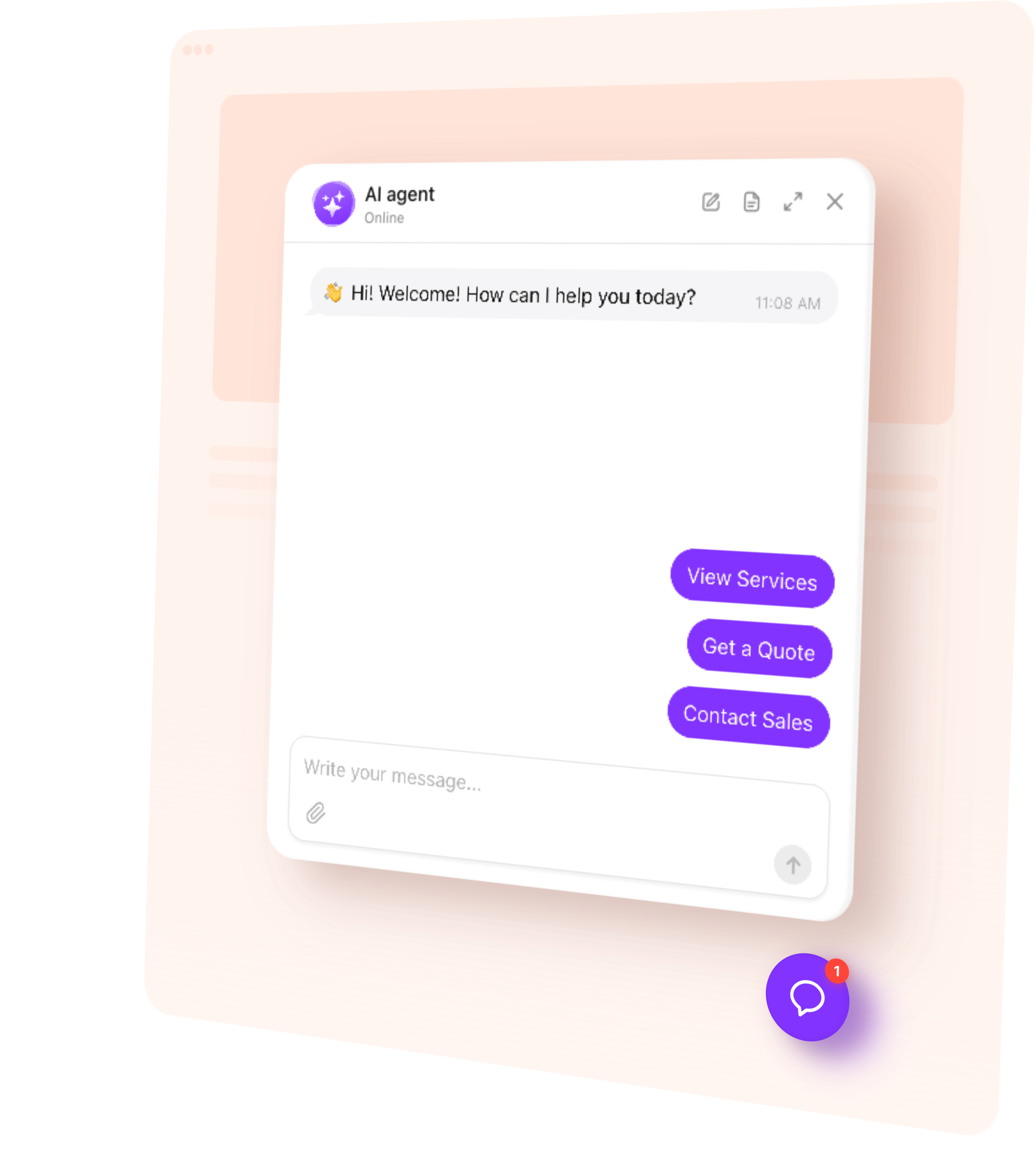
Flexible appearance. Customize colors, name, and avatar to match your website. Add a greeting and suggested questions to help visitors start a conversation.
Multilingual conversations. Let people ask questions and receive answers in their language.
Train Your AI Chatbot on Business Content
Give the chatbot the information your customers need. Add public page URLs, upload files, or write custom Q&A in the editor. You can update its knowledge without editing your website’s jQuery scripts.
- Service and pricing pages — What you offer, published prices, and how to request a quote.
- Product pages — Product details, use cases, and differences between options.
- Help pages and FAQs — Common questions, instructions, and troubleshooting guidance.
- Business information — Locations, opening hours, service areas, and contact options.
- Files and custom Q&A — Detailed guidance and answers not available on your website.
Add up to 200 web page URLs. Use Retrain after changing an existing source page, and add new URLs when needed. For content loaded dynamically, check the imported knowledge and supply missing details through files or custom Q&A.
AI Chatbot Skills for Leads and Support
Give visitors a useful next step within the conversation.
- Collect an inquiry — Ask for a name, email, or phone number when someone wants a quote or more information. Keep the submitted details with the conversation so your team can follow up with context.
- Open a relevant page — Show an action button leading to a product, service, contact form, or other useful destination on your website.
- Book an appointment — Connect Calendly or Cal.com so visitors can choose an available time directly in the chat. For another booking service, offer a link to its booking page.
- Offer human contact — Provide email, phone, or WhatsApp contact when a visitor needs a personal answer from your team.
- Follow up during a visit — Send a message after a period of inactivity to ask whether the visitor needs more information or help with the next step.
Customize Your AI Chatbot for jQuery Websites
Match your website with custom colors, a recognizable name and avatar, and a greeting and suggested questions that fit your audience. Choose a floating chat bubble for easy access to help or an embedded chat window within a contact or service page. Configure the chatbot’s appearance in its editor, then check how it fits alongside your existing navigation, popups, and mobile layout.
Track AI Chatbot Conversations and Leads
See what visitors ask and where they need more help.
- Conversations — Read chat histories and summaries to understand common questions.
- Leads — Review contact details alongside the conversation that prompted the inquiry.
- Analytics — Track chat sessions, messages, and collected leads in the dashboard.
Use knowledge gaps to find unanswered questions, then add the missing information to your chatbot.
How to Add an AI Chatbot to a jQuery Website
Follow this quick guide to install the chatbot on one page or through a shared template. If you need help, our support team offers free installation.
Embed the chatbot on a page
Choose the embedded chat window layout and customize the widget.
Once you set up your chatbot, copy its installation code from the dashboard.
Open the HTML file or page template where you want the chat to appear.
Paste the code at the chosen location inside the page body.
Save, publish your changes, and test the live page.
Add a floating chatbot across your website
Choose a floating layout in the AI Chatbot editor and customize your chatbot.
Place the installation code before the closing </body> tag in a shared layout or footer template. It will load on pages using that template. If your pages are separate HTML files, add the code to each page that needs the chatbot.
Tip: For websites that replace content through AJAX, keep the chatbot in a stable part of the layout where possible. Test navigation as well as the initial page load, and contact our support team if the chat only appears after a refresh.
Pricing
jQuery chatbot questions
Does it work on this setup?
Yes — install the widget, connect knowledge, and publish. Platform-specific steps stay in the guides.
What does it answer from?
Your own site pages and the knowledge you upload — not a generic public model alone.
Can people still reach a human?
Hand-off and lead capture skills send conversations to your inbox when you want them.