
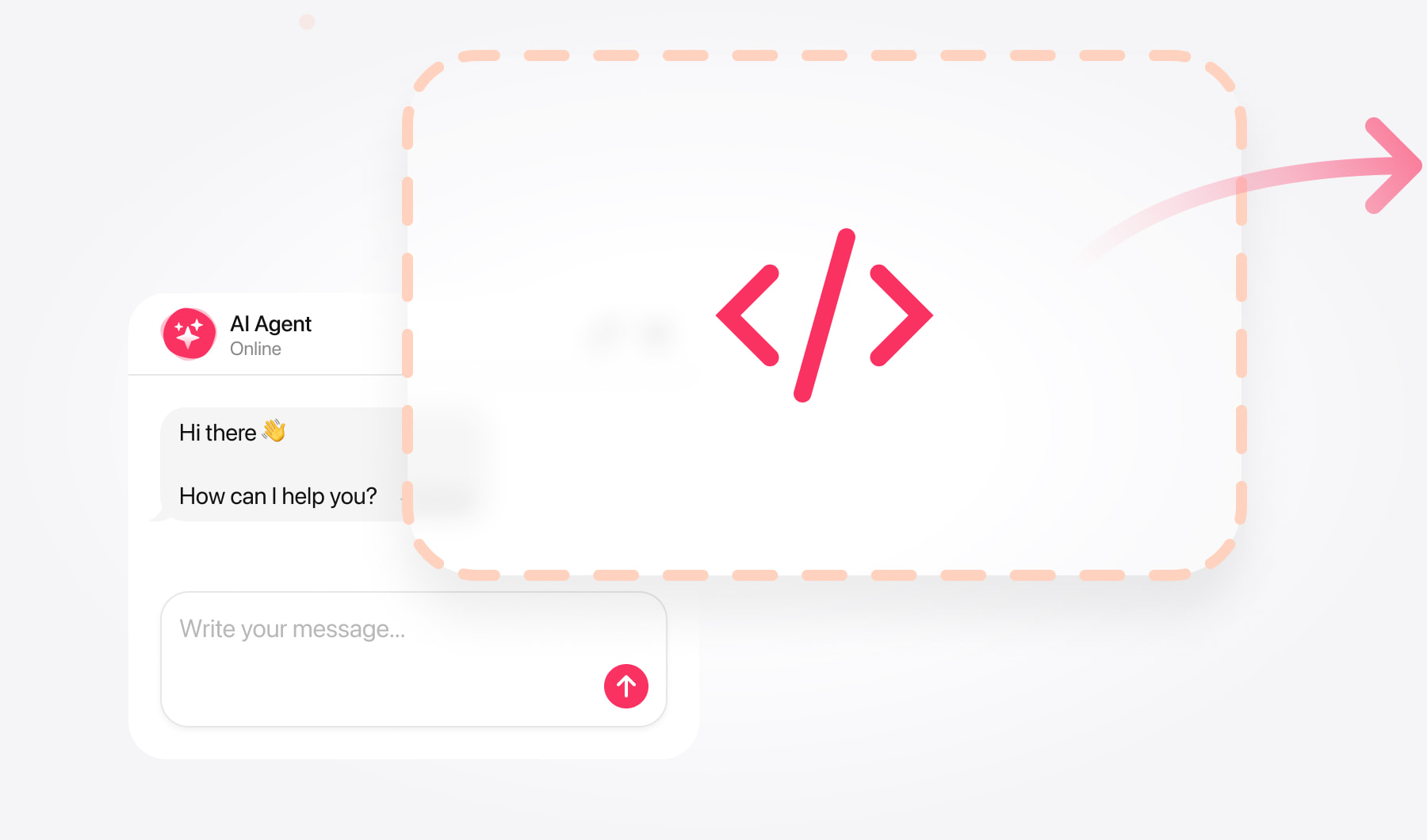
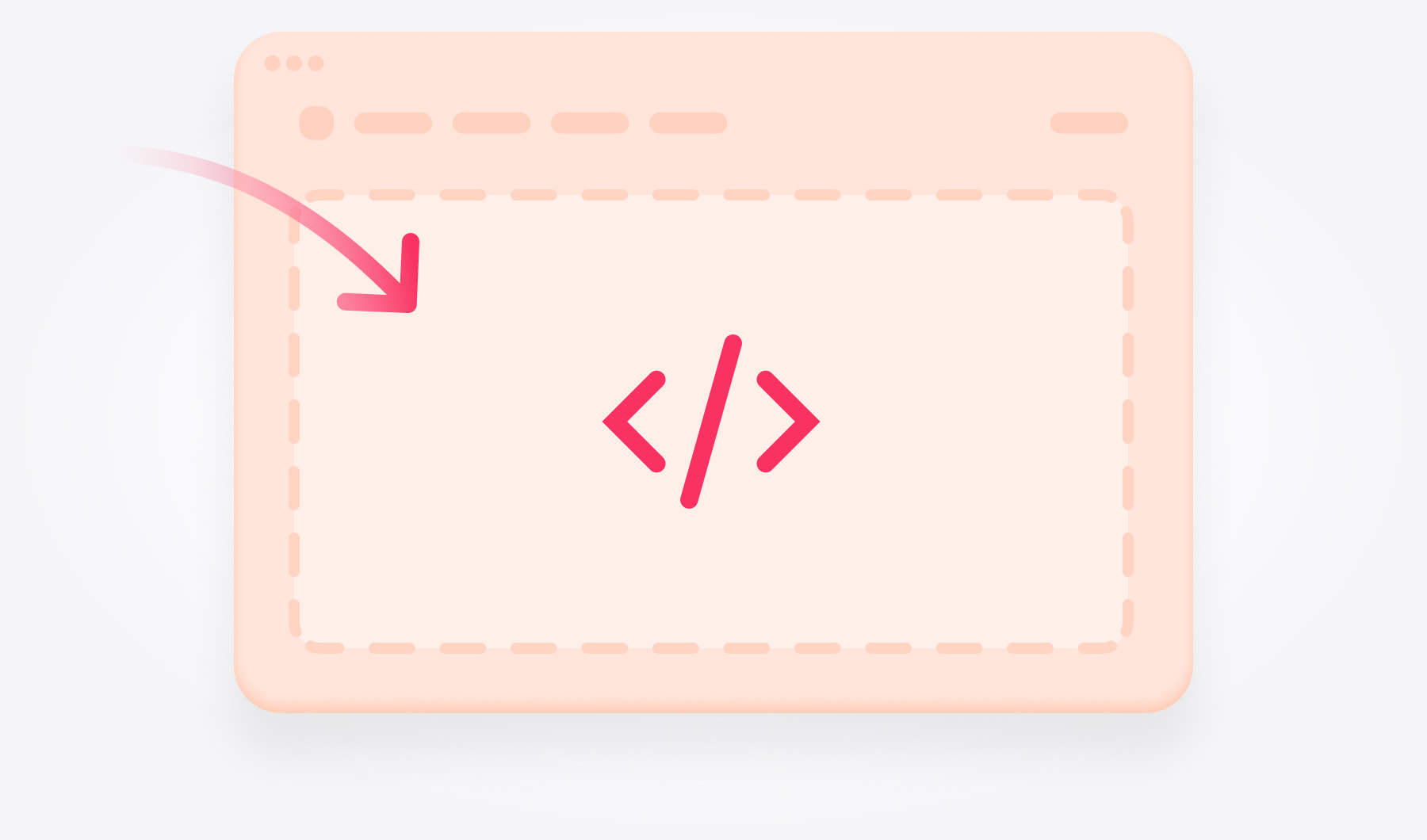
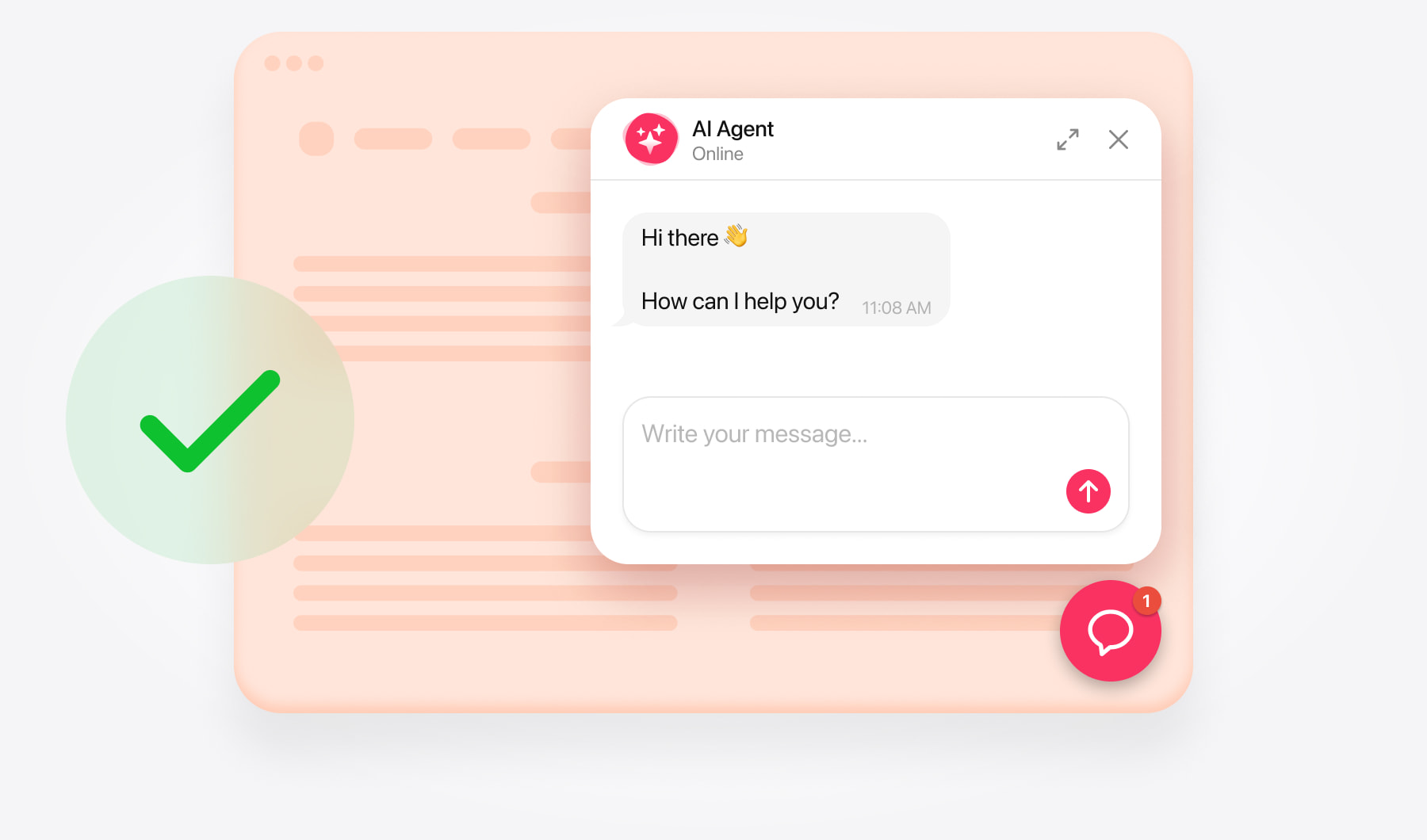
Create your chatbot and copy its code
Installation uses an HTML embed code. You don’t need to write a jQuery function or initialize the chatbot through your existing scripts.
Open the AI Chatbot editor and enter your website address. Review the generated knowledge, add missing information, and test the chatbot’s answers.
Customize its appearance and choose a layout:
- Embedded chat window — appears within your page content.
- Floating chatbot — stays accessible through a chat launcher.
Save your chatbot and copy its complete installation code from the dashboard. Use this code in your chosen installation method below.
Add AI Chatbot as a floating chat
Use floating chat when you want visitors to ask questions without leaving the page they’re browsing.
Add floating chat to a selected page
Open your website files. Use your code editor or hosting file manager.
Choose the page. Open the HTML file or template that generates it.
Insert your code. Paste the complete floating chatbot installation code immediately before the closing </body> tag.
Save and publish. Upload the updated file or deploy your changes.
Paste the snippet directly into the HTML, outside any existing <script> block.
Add floating chat across your website
Place the complete installation code in a shared footer or layout used by all relevant pages.
If your website uses separate HTML files without a shared layout, add the code to each page individually. Check that the same chatbot isn’t installed both in the shared layout and in individual pages.
Add AI Chatbot as an embedded chat
Open the target page. Find its HTML file or content template.
Choose the position. Within <body>, locate where you want the conversation to appear.
Paste your code. Insert the complete embedded chat installation code.
Save and publish. Open the live page to check the result.
Check the embedded chat’s position
Place the chat near the information visitors are likely to ask about. For example, add it below a service description or inside a dedicated support section.
Give the interface enough room for visitors to read responses and type comfortably. Avoid placing it in a narrow column or a container whose fixed height cuts off the chat.
Check the layout on both desktop and mobile.
>
Some jQuery websites replace page sections without a full browser reload.
For floating chat, place the installation code in the main layout outside the area your scripts replace. This keeps navigation from removing the chatbot’s container.
For embedded chat inside dynamically loaded content, test the complete navigation path: open the section, leave it, and return. If the chatbot disappears or appears twice, ask your developer or the support team to review how that section loads.
Test your AI Chatbot installation
Open your live website in a new or private browser window and check that:
- The chatbot loads and visitors can send and receive messages.
- The floating launcher appears on the intended pages.
- The embedded chat interface is fully visible.
- The launcher doesn’t overlap navigation or cookie controls.
- Links, contact buttons, and other configured actions work correctly.
- The chatbot remains usable after navigating between pages or loading new content.
- The layout works on desktop and mobile.
Test a few questions your visitors might be interested in. If the chatbot doesn’t provide a complete answer, review the relevant knowledge source and add the missing details.
If the chatbot doesn’t appear
Check that the complete installation code is present on the live page and that your latest changes have been published.
If your website uses caching, clear its cache and reload. For dynamically loaded sections, check whether your page scripts remove or replace the element containing the chatbot.
Need help with installation?
Contact the support team with your website’s URL and explain whether you want a floating chatbot across the site or an embedded chat on a particular page. Mention if your website loads content dynamically.
Free installation assistance is available.