
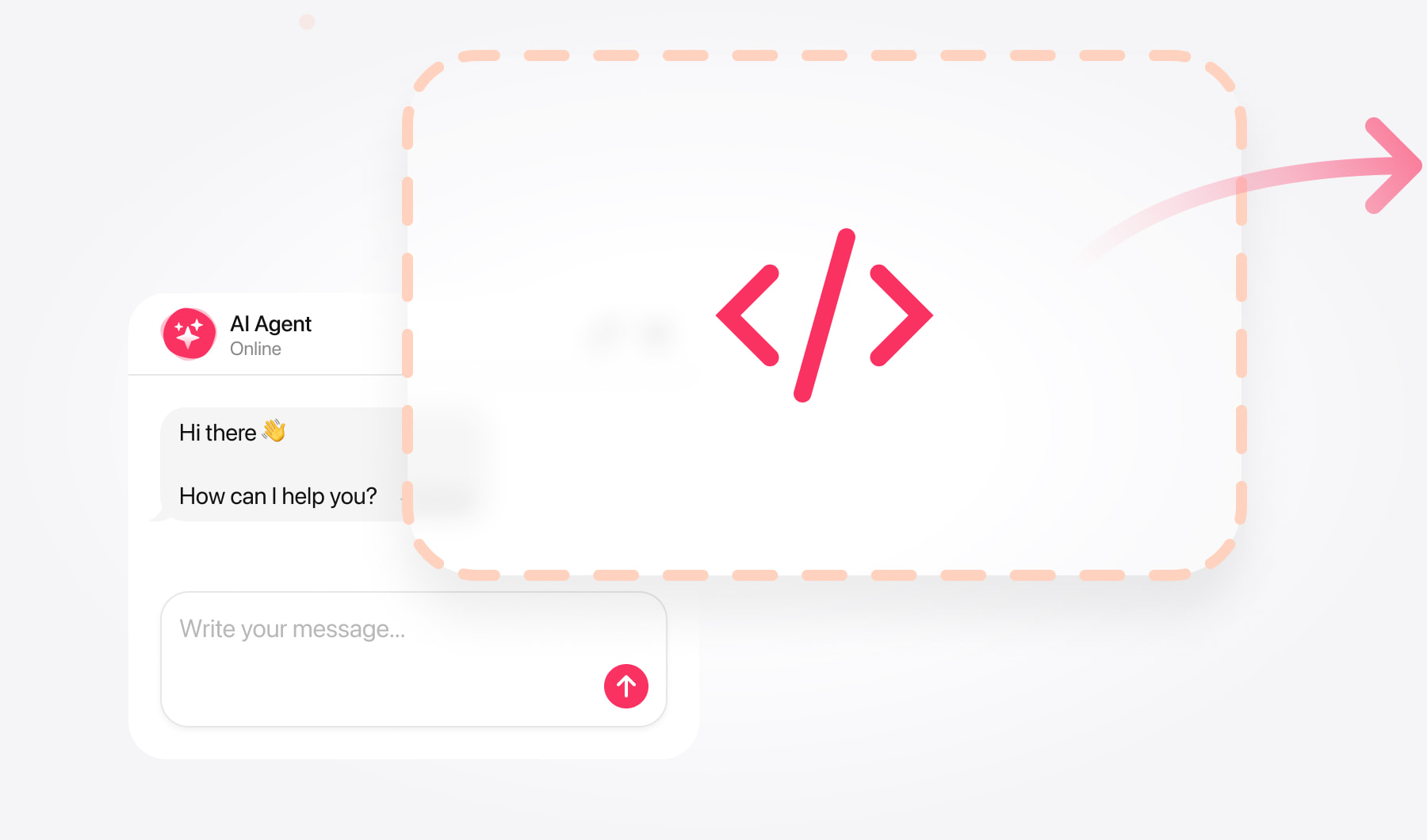
Create your chatbot and copy its code
Install a conversation window within your content or make chat accessible through a floating launcher. This guide covers Squarespace 7.0 and 7.1.
The installation methods below require Core, Plus, or Advanced, or a legacy Business, Commerce Basic, or Commerce Advanced plan.
Basic and legacy Personal plans don’t include the JavaScript features used in these instructions. If you’re on one of those plans, contact support to discuss your installation options.
Start by entering your website address in the AI Chatbot editor. Review the information gathered from your pages and add any details visitors need before contacting you or making a purchase.
Choose a layout:
- Embedded chat window — places the conversation directly within a page.
- Floating chatbot — lets visitors open chat from a launcher.
Set the appearance, try a few questions, and save your chatbot. Copy the complete installation code from your dashboard.
Squarespace 7.1
Open the page. Go to Website → Pages, choose your page, and click Edit.
Prepare a section. Use an existing section or select Add Section → Add a blank section.
Insert a Code block. Click Add Block → Code.
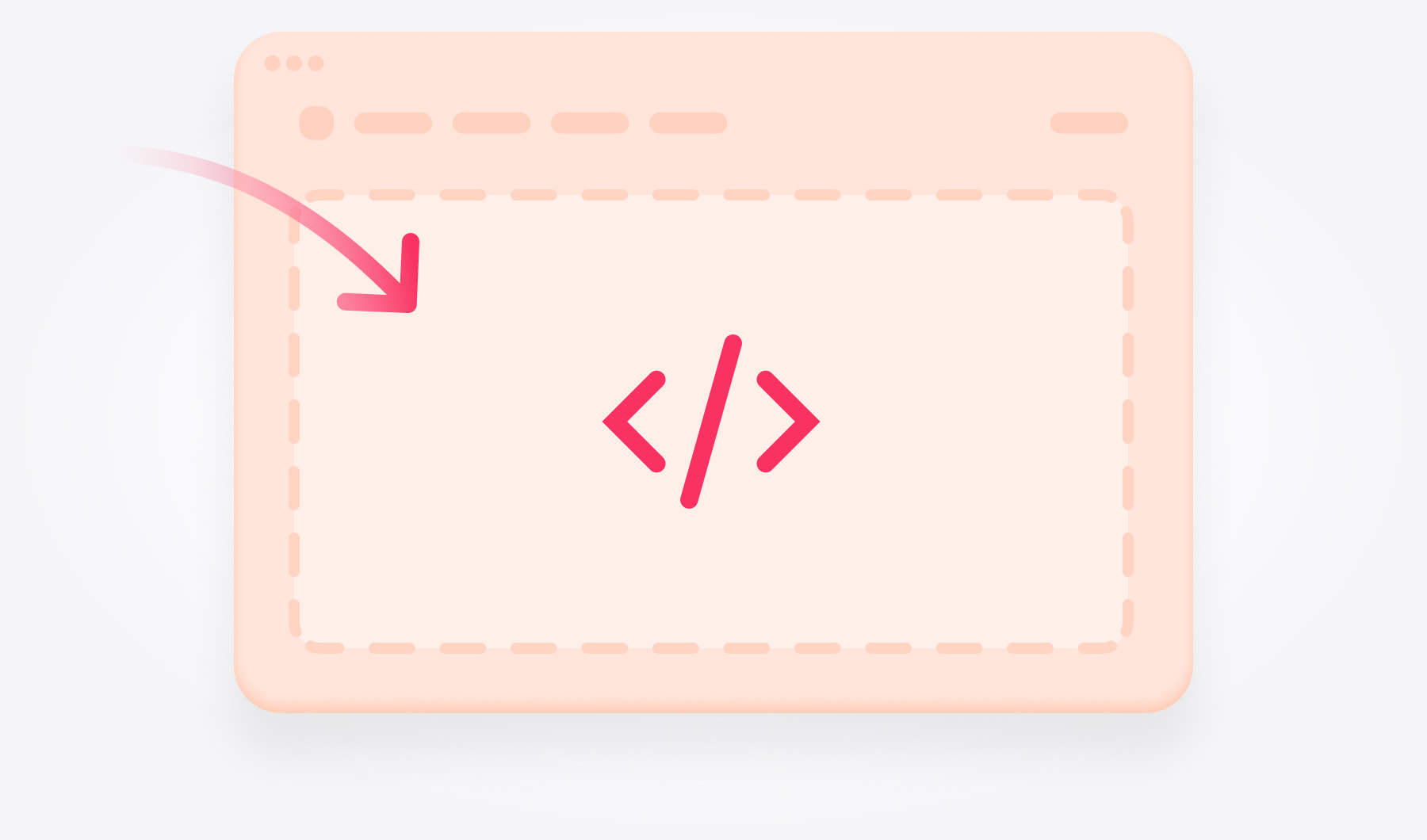
Paste the snippet. Open the block settings and enter the complete embedded chat code.
Set the display. Select HTML mode and keep Display Source turned off.
Adjust and save. Resize the block to fit the conversation, then save the page.
Squarespace 7.0
Under Website → Pages, open the target page for editing.
Click an insertion point where the chatbot should appear.
Choose Code and paste the complete embedded chat snippet.
Use HTML mode with Display Source off, then save.
Check the chat’s position
Place the conversation where visitors are likely to have questions: after a service description, beside contact information, or on a dedicated support page.
Introduce it with a brief instruction, such as: “Ask about our services, prices, or booking a visit.”
Review the mobile layout separately. The message field and responses should remain accessible without the surrounding block cutting them off.
Add a floating chat across your website
Open the Pages panel. Go to Website → Pages.
Find Code Injection.
- Squarespace 7.1 — open Custom Code → Code Injection.
- Squarespace 7.0 — open Website Tools → Code Injection.
Use the Footer field. Paste your complete floating chatbot code, preserving any existing snippets.
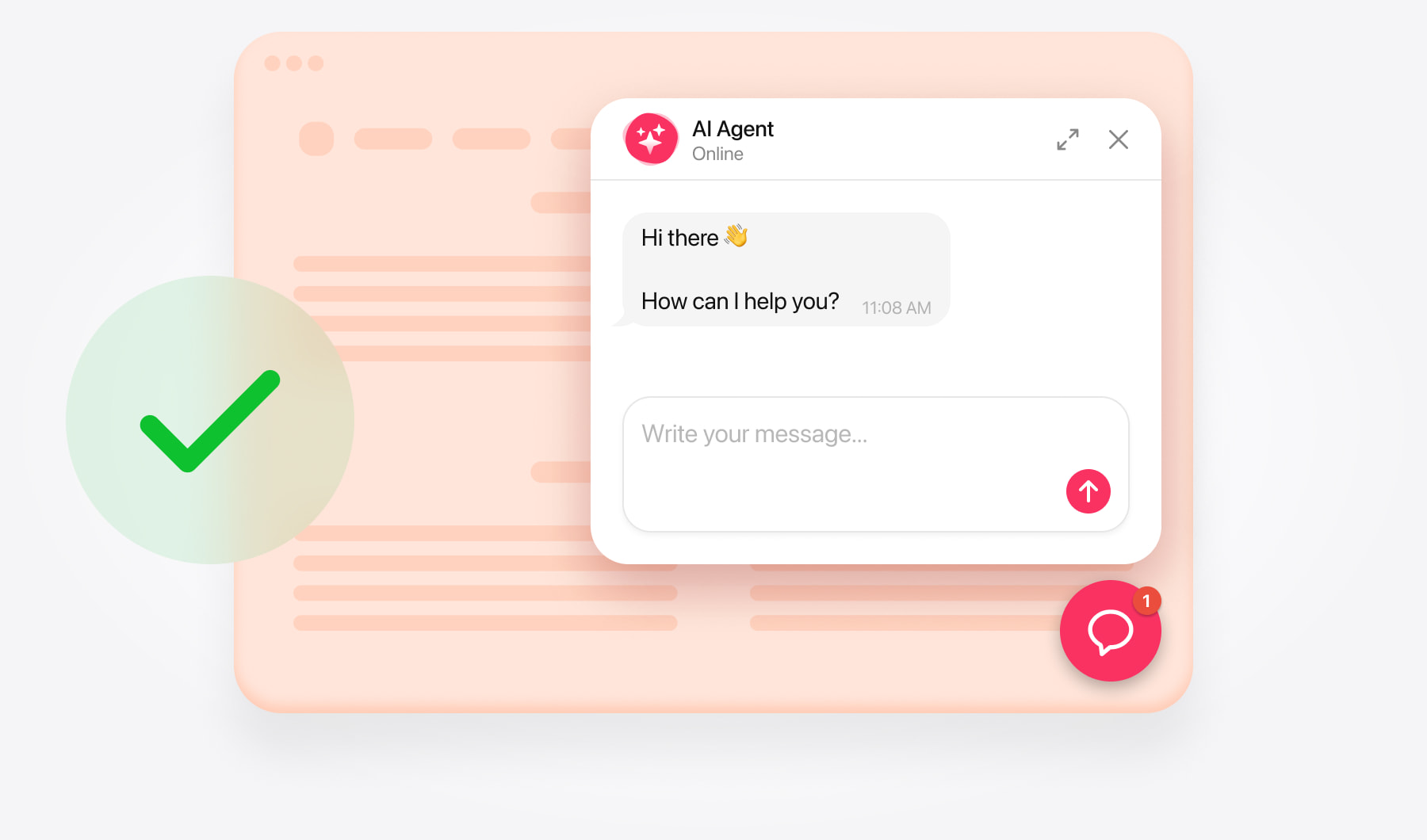
Save the changes. Open your live website to check the launcher. This placement covers regular website pages; Squarespace checkout pages don’t support code injection.
Add a floating chat to selected pages
For page-only placement, use a Code block on each intended page and paste the installation code for your floating layout. Follow the same block setup described in the embedded-chat section.
The block holds the snippet, while your AI Chatbot layout controls the launcher’s position.
If you previously installed the same chatbot through site-wide Code Injection, remove that copy before switching to selected pages.
Test your chatbot on the published website
Open the live site in a private browser window. Send a message, follow a suggested link, and check any contact or booking actions you configured.
Confirm that:
- The conversation loads on the intended pages.
- Visitors can read answers and type replies comfortably.
- The floating launcher leaves navigation and cookie controls accessible.
- The embedded window fits its section on desktop and mobile.
- Buttons and links lead to the right destinations.
Try questions that reflect what visitors need to decide. If an answer misses useful details, update the chatbot’s knowledge and repeat the question.
Fix common installation issues
The page shows code instead of chat. Open the Code block, select HTML mode, and turn off Display Source.
The chatbot looks wrong inside the editor. Check the live website while logged out before changing its size or placement. Extra footer spacing can appear only in the editing view.
Two launchers appear. Check for duplicate snippets in Code Injection and individual Code blocks.
The chatbot doesn’t load. Confirm that your plan supports JavaScript, the complete snippet is present, and your changes were saved.
Get help with your Squarespace installation
Free installation assistance is available. Send the support team your website URL, Squarespace version, and preferred placement. For embedded chat, include the page and section where you want the conversation.