
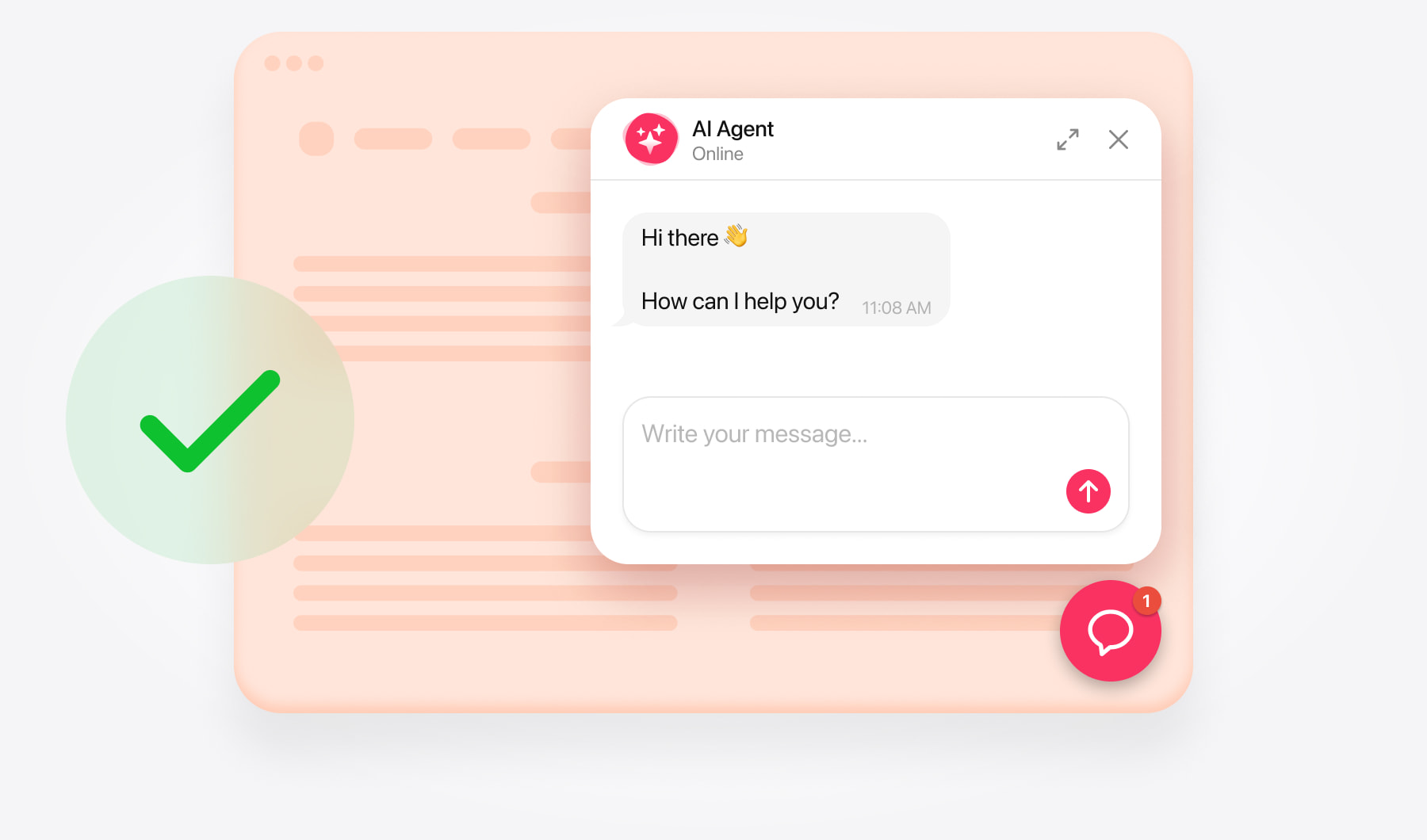
Create your chatbot and copy its code
This guide uses the HTML Box module to load the chatbot’s code. You’ll need access to install and configure modules in your PrestaShop back office.
Open the AI Chatbot editor and enter your store’s website address. Review the generated knowledge, add missing product or policy information, and test the chatbot’s answers.
Customize its appearance and choose a layout:
- Embedded chat window — appears within your page content.
- Floating chatbot — stays accessible through a chat launcher as shoppers browse.
Save your chatbot and copy its complete installation code from the dashboard.
The snippet contains two parts: a loader script inside <script>...</script> and a chatbot container inside <div>...</div>. Keep both available—you’ll use them together or separately depending on the installation method.
Install the HTML Box module
Download the module. Open thePrestaShop HTML Box page and choose the download for your PrestaShop version.
Open Module Manager. In your back office, go to Modules → Module Manager → Upload a module.
Upload the ZIP file. Use the downloaded archive without unpacking it.
Open the settings. Once installation finishes, click Configure.
If HTML Box is already installed, open its configuration from Module Manager.
Add floating chat across your storefront
In HTML Box, choose Footer as the display position.
Open Source Code (</>) in the content editor.
Paste your complete floating chatbot installation code.
Click OK, then Save.
Check the launcher on pages where your theme loads the footer.
Add floating chat to a selected page
Follow the embedded-chat steps below using your floating layout. Put only the loader script in HTML Box and the chatbot container on the selected page.
Avoid adding the same container to both the page and the footer.
Load the chatbot script
Configure HTML Box and select Footer.
Open source view and paste only the <script>...</script> portion of your installation code.
Click OK → Save.
If this loader is already installed, keep the existing copy.
Place the chat on a content page
Go to Design → Pages and edit the target page.
Open source view in Page Content.
Paste the <div>...</div> portion where the chat should appear.
Click OK → Save.
Place the chat on the home page
With the loader installed, open Modules → Module Manager → Custom Text Block → Configure. Insert the chatbot container in source view and save, preserving any existing content you need.
If your theme uses a different home-page builder, contact support for placement instructions.
Check the embedded chat’s position
A buying guide, delivery information page, or support page can give the conversation a clear purpose. Introduce it with a short instruction such as: “Ask about product details, delivery, or returns.”
Give the interface enough room for shoppers to read responses and type comfortably. Check that your theme’s columns or fixed-height sections don’t cut off the chat, especially on mobile.
Test your AI Chatbot installation
Open your live store in a new or private browser window and check that:
- The chatbot loads and shoppers can send and receive messages.
- The floating launcher appears on the intended pages.
- The embedded chat appears in the correct position.
- The launcher doesn’t overlap the cart, navigation, or cookie controls.
- Product links, contact buttons, and other configured actions work correctly.
- The layout is usable on desktop and mobile.
Test a few questions like “What are your delivery options?” or “Can I return an item?”
If you get an incomplete answer, review the relevant knowledge source and add the missing details.
If the chatbot doesn’t appear, check that HTML Box is enabled and that both parts of the installation code are present: the loader script and the chatbot container.
Reopen the page’s source view after saving. If the editor removed or changed the code, ask your administrator or support team to review its HTML filtering settings.
Also confirm that the content page is published and your live store shows the latest saved version.
Need help?
Contact our support team with your store’s URL, PrestaShop version, and theme name. Explain whether you want a floating chatbot across the storefront or an embedded chat on a particular page.
Free installation assistance is available.