
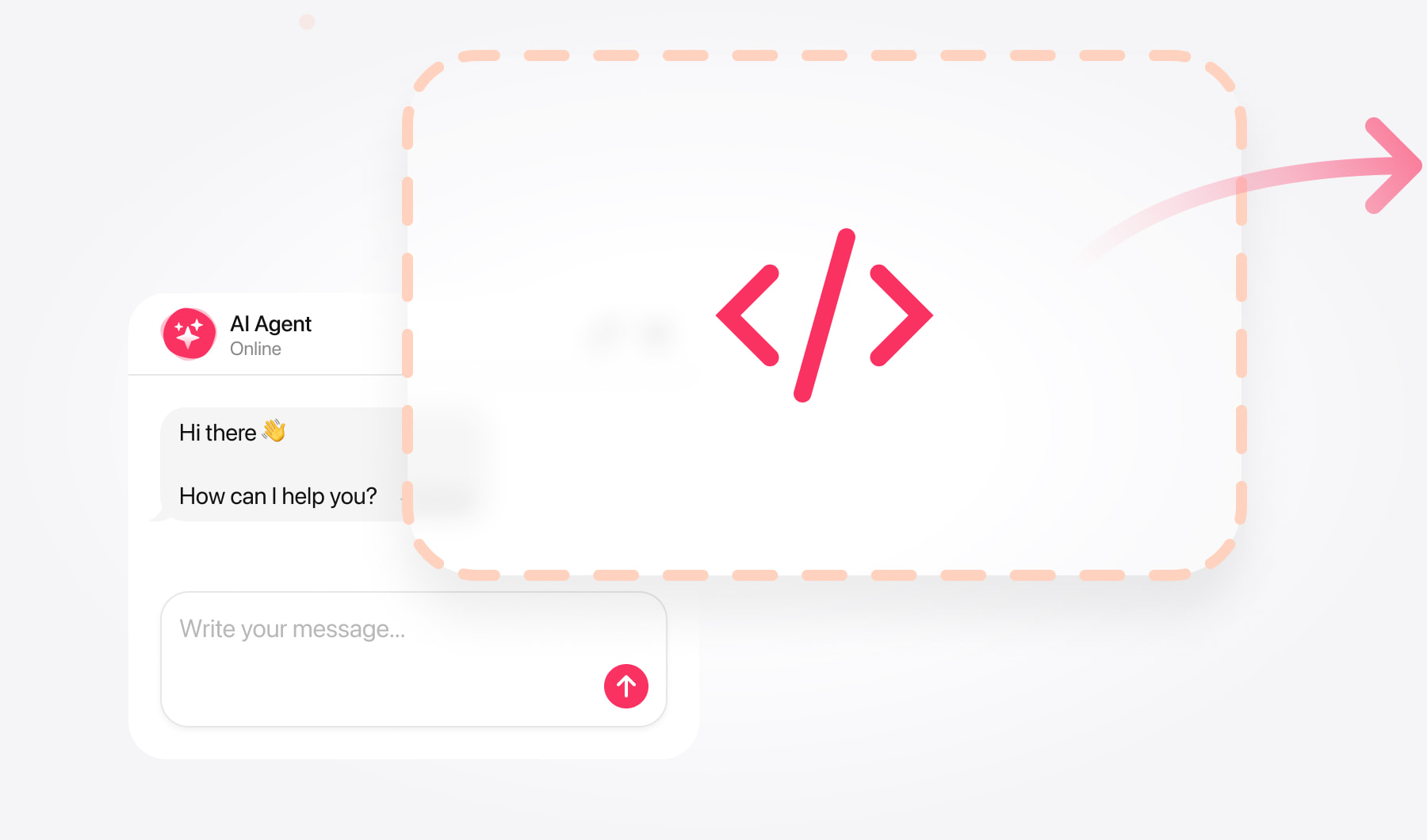
Create your chatbot and copy its code
You’ll need administrator access to edit your website template and article content. Menu names may vary depending on your Joomla version.
Open the AI Chatbot editor and enter your website address. Review the generated knowledge, add missing information, and test the chatbot’s answers.
Customize its appearance and choose a layout:
- Embedded chat window — appears within your page content.
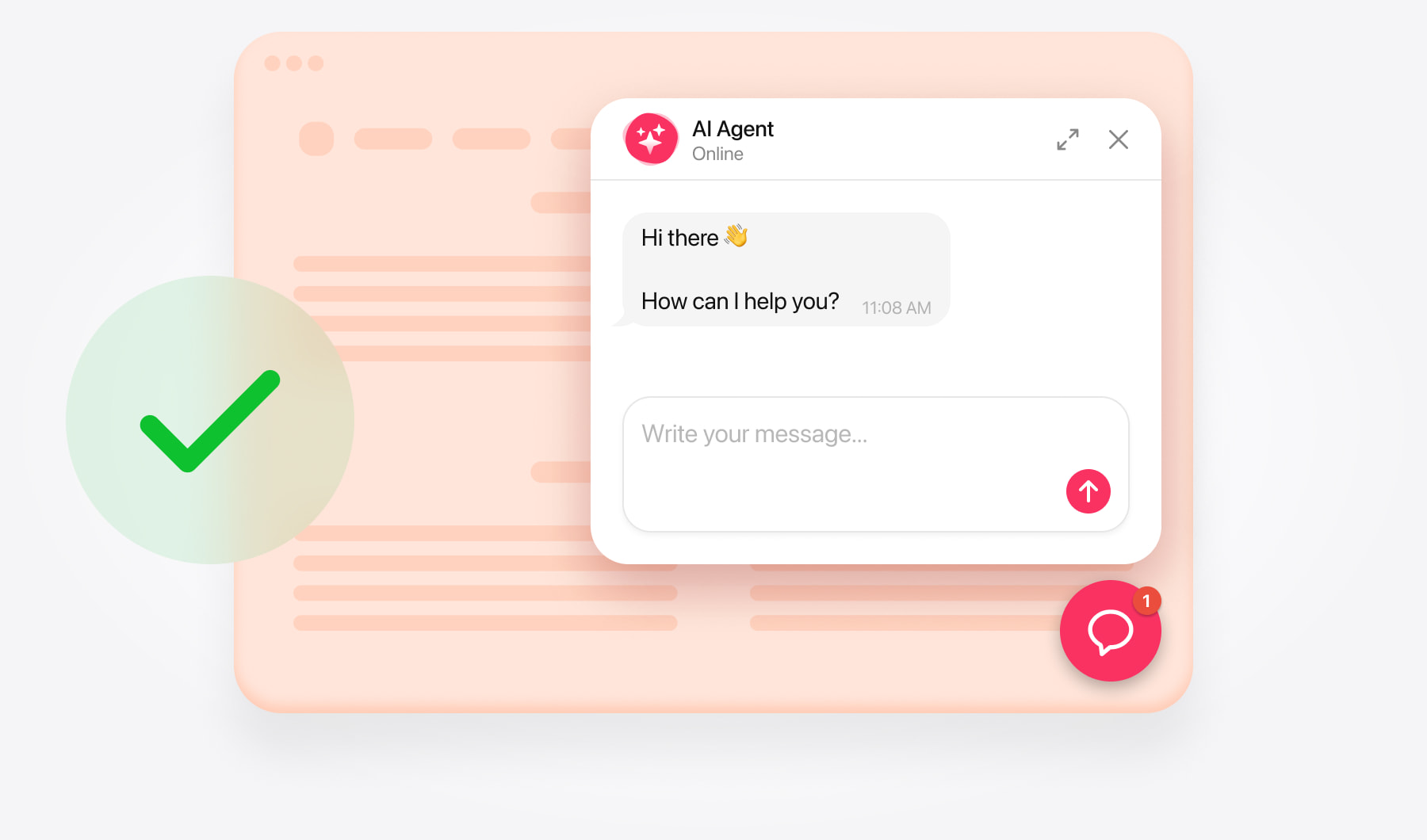
- Floating chatbot — stays accessible through a chat launcher.
Save your chatbot and copy its complete installation code from the dashboard.
The code includes a loader script and a chatbot container with your unique widget ID. Some installation methods below place these two parts separately.
Add AI Chatbot as a floating chat
Use floating chat when you want visitors to ask questions without leaving the page they’re browsing.
Add floating chat across your website
Open your site template. Go to System → Site Templates and select the template your website uses. In older Joomla versions, go to Extensions → Templates → Templates.
Open the layout file. Select index.php.
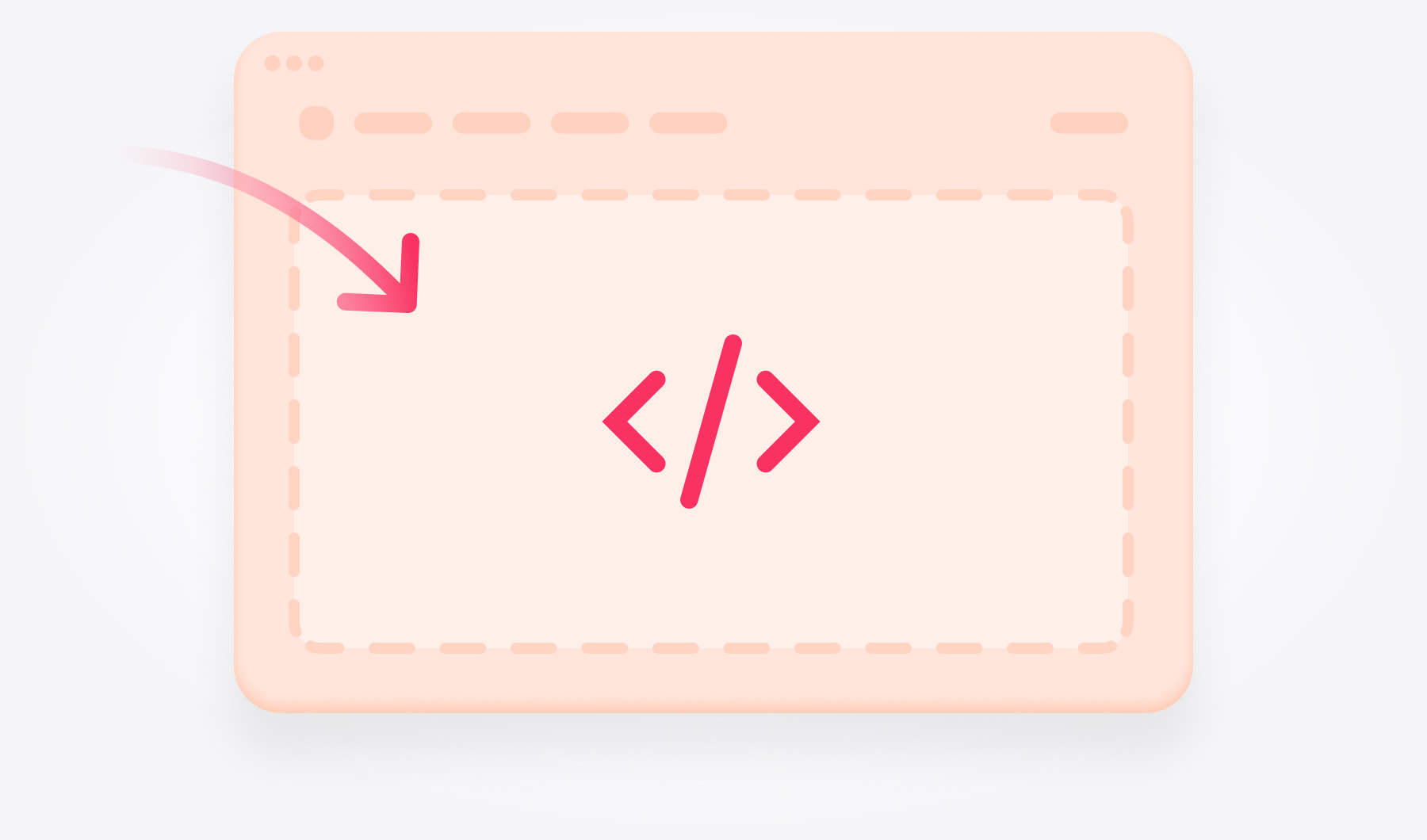
Insert your chatbot. Paste the complete floating chatbot installation code immediately before the closing </body> tag.
Save. Click Save or Save & Close.
The chatbot will appear on pages that use this template. If different sections use different templates, check each section separately.
Add floating chat to a selected article page
Add the loader script. Insert only the <script>...</script> part of your installation code before </body> in your site template. Save.
Open the article. Go to Content → Articles and select the target article.
Switch to source view. Open Source Code or HTML Code in the editor.
Add the container. Paste the <div>...</div> part of your floating chatbot code and save the article.
If the loader is already installed in that template, use the existing copy.
Add AI Chatbot as an embedded chat
Install the loader. Add the script portion of your installation code to the site template as described above.
Choose your article. Open it under Content → Articles.
Set the position. In the editor’s source view, paste the container portion of your embedded chat code where the conversation should appear.
Save and check. Save the article and open its published page.
Check the embedded chat’s position
Place the chat where visitors are likely to need answers. For example, add it below a service description or near the beginning of a support article.
Give the conversation enough width and height for comfortable reading. Check that your template’s columns or content styles don’t cut off the message input, especially on mobile.
If your template uses custom code fields
Some templates provide a Before </body> field instead of exposing the page layout directly in index.php.
Use that field for:
- Site-wide floating chat — the complete installation code.
- Article-specific chat — the loader script only, with the container placed in the article.
Choose one installation location for the loader to avoid adding it twice.
Test your chatbot installation
Open your live website in a new or private browser window and check that:
- The chatbot loads and visitors can send and receive messages.
- The floating launcher appears on the intended pages.
- The embedded chat interface is fully visible.
- The launcher doesn’t overlap navigation or cookie controls.
- Links, contact buttons, and other configured actions work correctly.
- The layout is usable on desktop and mobile.
Try a few questions your visitors are likely to ask, e.g. “What services do you offer?” or “How can I contact your team?”
If an answer is incomplete, review the relevant knowledge source and add the missing details.
If the chatbot doesn’t appear, reopen the article’s source view and check that the chatbot container is still present. Joomla’s editor or text filters may alter HTML when you save. If the code disappears, ask your site administrator to review those settings for your editing account.
Also check that the article is published, the loader is installed in the template used by that page, and the widget ID matches your chatbot. Clear Joomla’s cache if the live page still shows an older version.
Need help with installation?
Contact the support team with your website’s URL, Joomla version, and template name. Explain whether you want a floating chatbot across the website or an embedded chat inside a particular article.
Free installation assistance is available.