
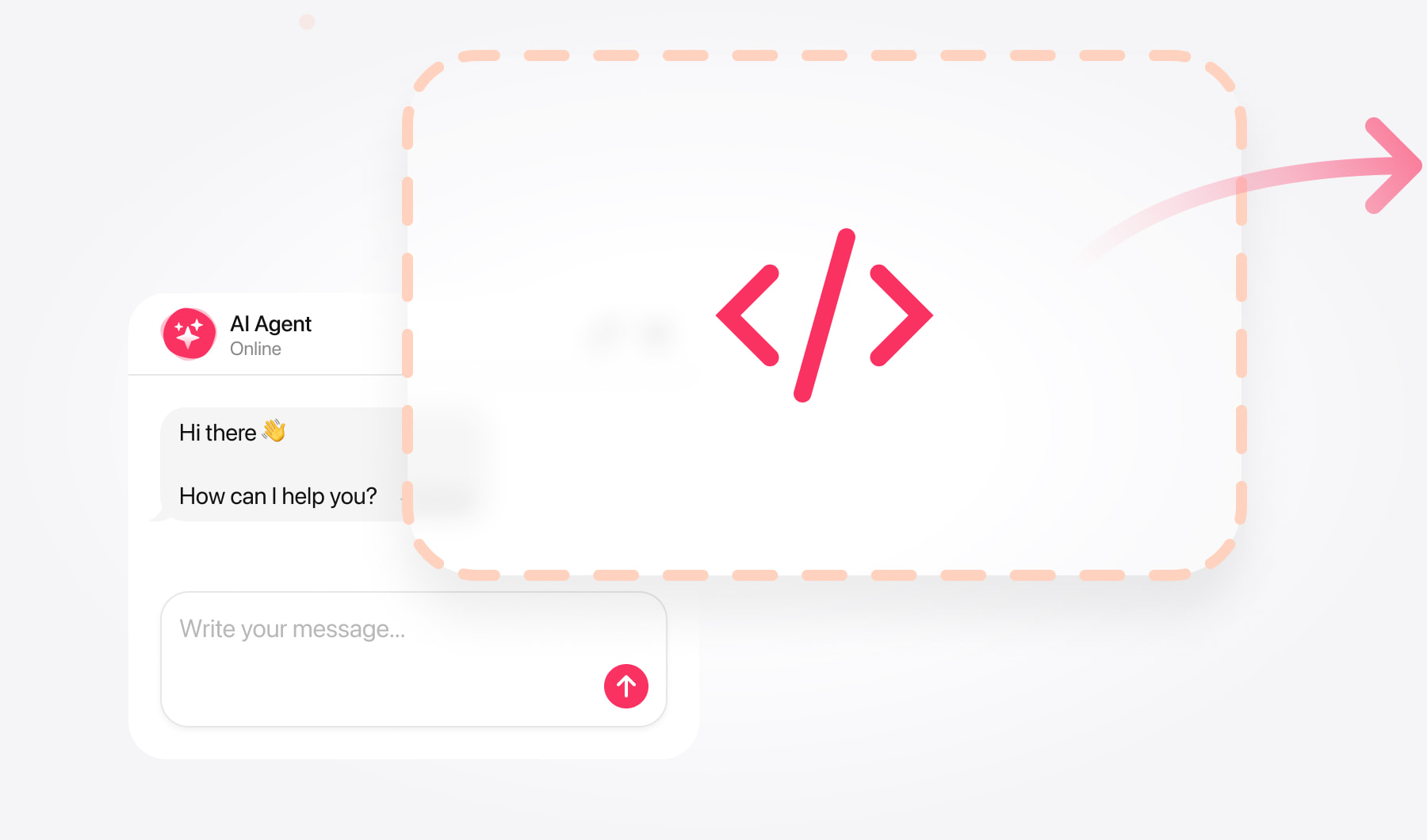
Create your chatbot and copy its code
This guide covers custom-coded HTML websites. You’ll need access to your website’s source files and a way to publish your changes.
Open the AI Chatbot editor and enter your website address. Review the generated knowledge, add missing information, and test the chatbot’s answers.
Customize its appearance and choose a layout:
- Embedded chat window — appears within your page content.
- Floating chatbot — stays accessible through a chat launcher.
Save your chatbot and copy its complete installation code from the dashboard. Use this code in your chosen installation method described below.
Add AI Chatbot as a floating chat
Use floating chat when you want visitors to ask questions without leaving the page they’re browsing.
Add floating chat to a selected page
Open your files. Use a code editor or your hosting file manager.
Select the page. Open its HTML file.
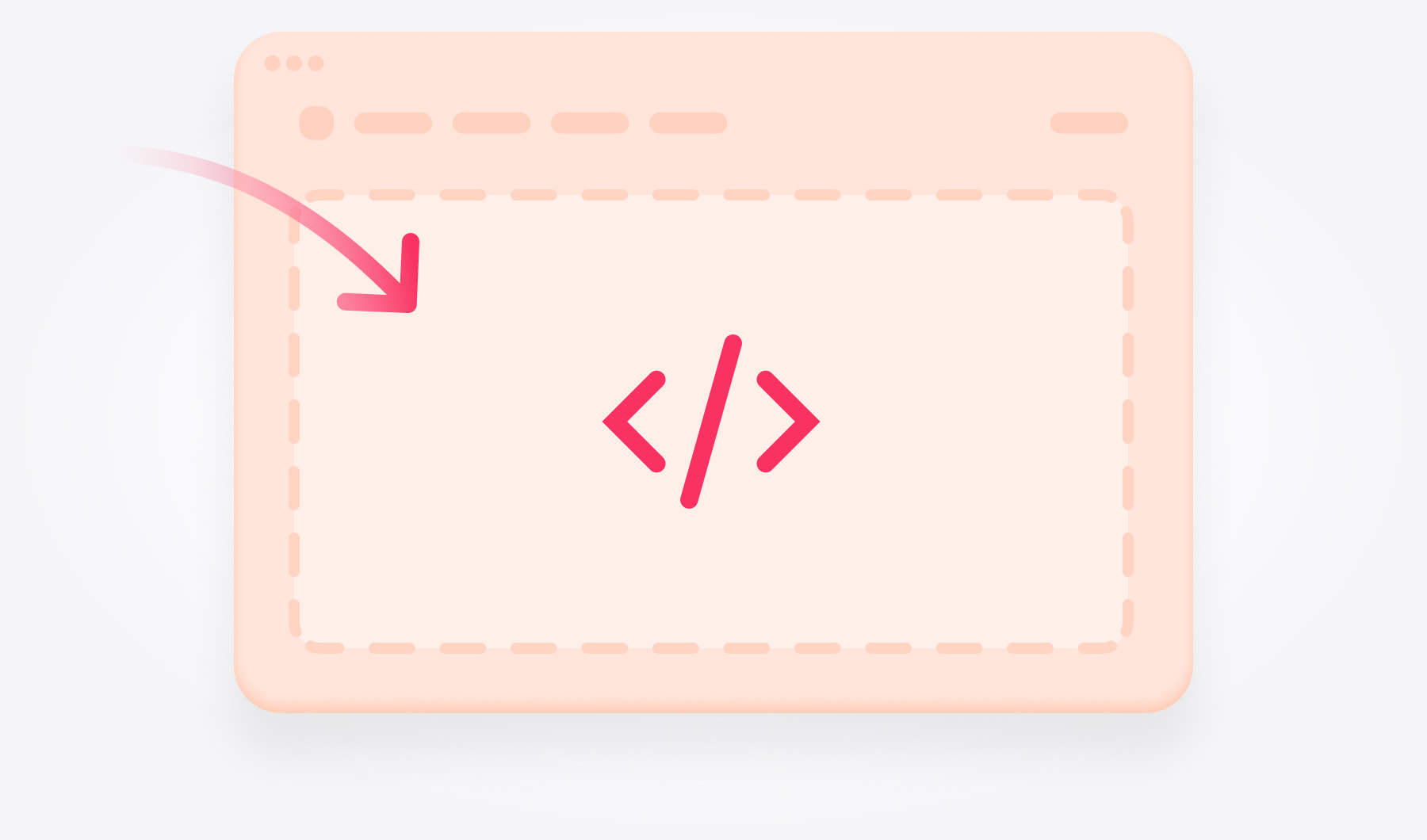
Insert your code. Paste the complete floating chatbot installation code immediately before </body>.
Publish the change. Save the file and upload it if you edited it locally.
Add floating chat across your website
Repeat the installation on each page, or place the complete code in a shared footer or layout that your site already uses.
A shared file only works if your website includes it on the relevant pages. Check that each page loads the chatbot once.
Add AI Chatbot as an embedded chat
Open the target HTML file.
Find the position. Within <body>, locate where the chat should appear.
Paste your code. Insert the complete embedded chatbot installation code there.
Save and publish. Upload the updated file if needed.
Check the embedded chat’s position
Place the chat where it supports the page’s purpose. A service page might introduce it after the service description; a support page could place it below a short invitation to ask a question.
Check that your page’s styling gives the chatbot enough room. Avoid narrow columns or containers with a fixed height that cuts off the interface.
On mobile, make sure visitors can read responses and reach the message input without scrolling sideways.
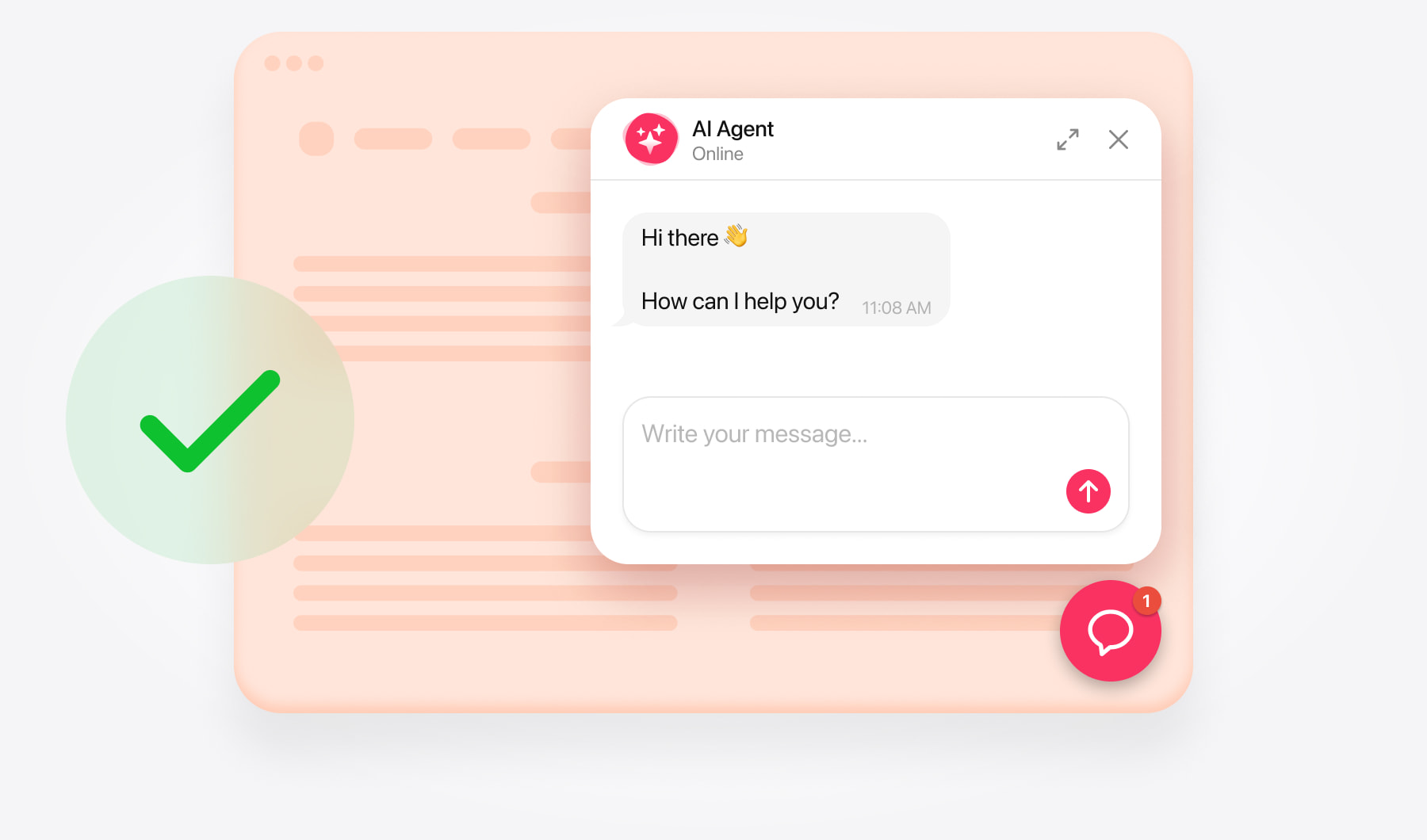
Test your AI Chatbot installation
Open your live website in a new or private browser window and check that:
- The chatbot loads and visitors can send and receive messages.
- The floating launcher appears on the intended pages.
- The embedded chat interface is fully visible.
- The launcher doesn’t overlap navigation, forms, or cookie controls.
- Links, contact buttons, and other configured actions work correctly.
- The layout is usable on desktop and mobile.
Test a few questions your visitors are likely to ask. If an answer is incomplete, review the relevant knowledge source and add the missing details.
If the chatbot doesn’t appear, check that you updated the correct page and published the latest file. Make sure the installation snippet is complete and hasn’t been placed inside an HTML comment.
If your website uses caching, clear its cache and reload the page. If the issue continues, send your page URL to support.
Need help?
Contact our support team with your website’s URL and explain whether you want a floating chatbot across the website or an embedded chat on a particular page.
Free installation assistance is available.