
Create your chatbot and copy its code
Open the AI Chatbot editor and enter your website address. Review the generated knowledge, add missing information, and test the chatbot’s answers.
Customize its appearance and choose a layout:
- Embedded chat window — appears within your page content.
- Floating chatbot — stays accessible through a chat launcher as visitors browse.
Save your chatbot and copy its complete installation code from the dashboard. Use this code in your chosen installation method below.
Check your Drupal editing permissions. You’ll need permission to edit content or manage blocks, depending on the method you choose.
The instructions below use Full HTML and the editor’s Source mode. Availability depends on your Drupal version and configuration. Full HTML alone does not guarantee that your editor will preserve JavaScript. If the script is removed or the Source option is missing, ask your site administrator to provide an approved way to insert the installation code.
Add AI Chatbot as a floating chat
Use floating chat when you want visitors to ask questions while browsing your website.
Add floating chat across your website
Open block settings. Go to Structure → Block layout and select your active website theme.
Choose a region. Find a footer region and click Place block → Add custom block. Depending on your version, you may need to create the block under Content → Blocks first.
Add your code. Name the block, select Full HTML, switch to Source, and paste the complete floating chatbot installation code.
Configure its display. Save the block, uncheck Display title, and confirm the footer region.
Check visibility. Leave page, content-type, and role restrictions unset if the chatbot should appear throughout the public website.
Save the placement. Save the block configuration and click Save blocks if shown.
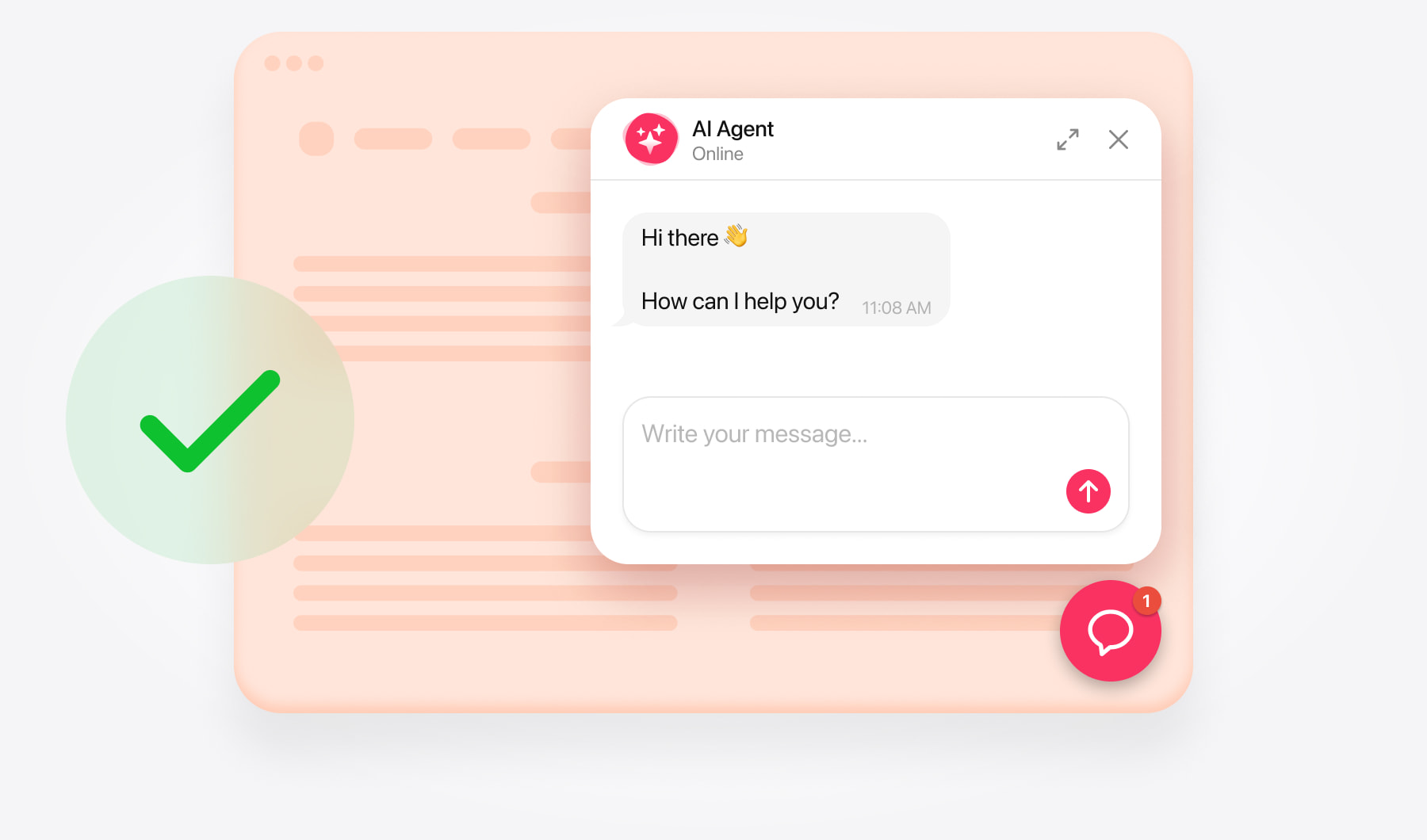
The footer block loads the chatbot; the floating layout controls the launcher’s position.
Add floating chat to selected pages
In Structure → Block layout, find your chatbot block and click Configure.
Open Visibility → Pages.
Choose the option to show the block only on listed pages.
Enter the required paths, one per line. Use <front> for the homepage.
Save and check both an included and an excluded page.
Apply these settings to your existing chatbot block rather than adding a second copy.
Add AI Chatbot as an embedded chat
Open the content page. Go to Manage → Content, find the page, and click Edit.
Enable HTML editing. Select Full HTML, then open Source.
Insert your code. Paste the complete embedded chat installation code at the desired position without removing existing content.
Save and publish. Save the changes and ensure the page is published.
Check the result. Open the live page and test the chat.
Check the embedded chat’s position
Place the chat where it supports the page’s purpose. For example, a service page can introduce it after the service description, while a support page can place it below a short invitation to ask a question.
Make sure the surrounding layout leaves enough room for messages and controls. Check the full interface on desktop and mobile, especially if your page uses multiple columns.
Test your chatbot installation
Open your live website in a new or private browser window and check that:
- The chatbot loads and visitors can send and receive messages.
- The floating launcher appears on the intended pages.
- The embedded chat interface is fully visible.
- The launcher doesn’t overlap navigation, cookie notices, or other controls.
- Links, contact buttons, and other configured actions work correctly.
- The chatbot is visible to logged-out visitors, not just administrators.
Test a few questions your visitors are likely to ask. If the chatbot doesn’t appear, check the saved installation code, text-format settings, and block visibility rules. If an answer is incomplete, add the missing information to its knowledge.
Need help with installation?
Contact the support team with your website’s URL and explain whether you want a floating chatbot across the site or an embedded chat on a particular page. Include your Drupal version if you know it. Free installation assistance is available.