
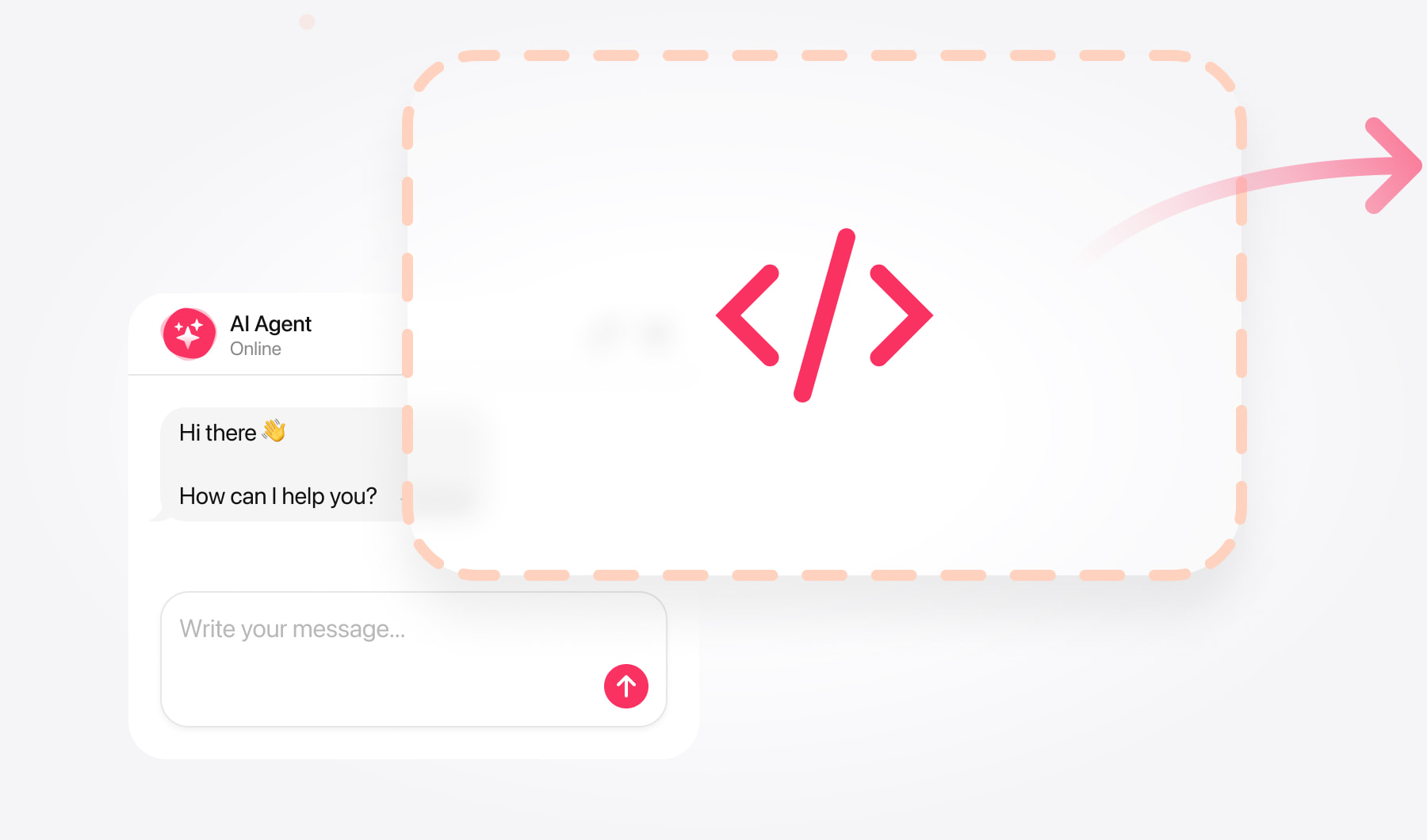
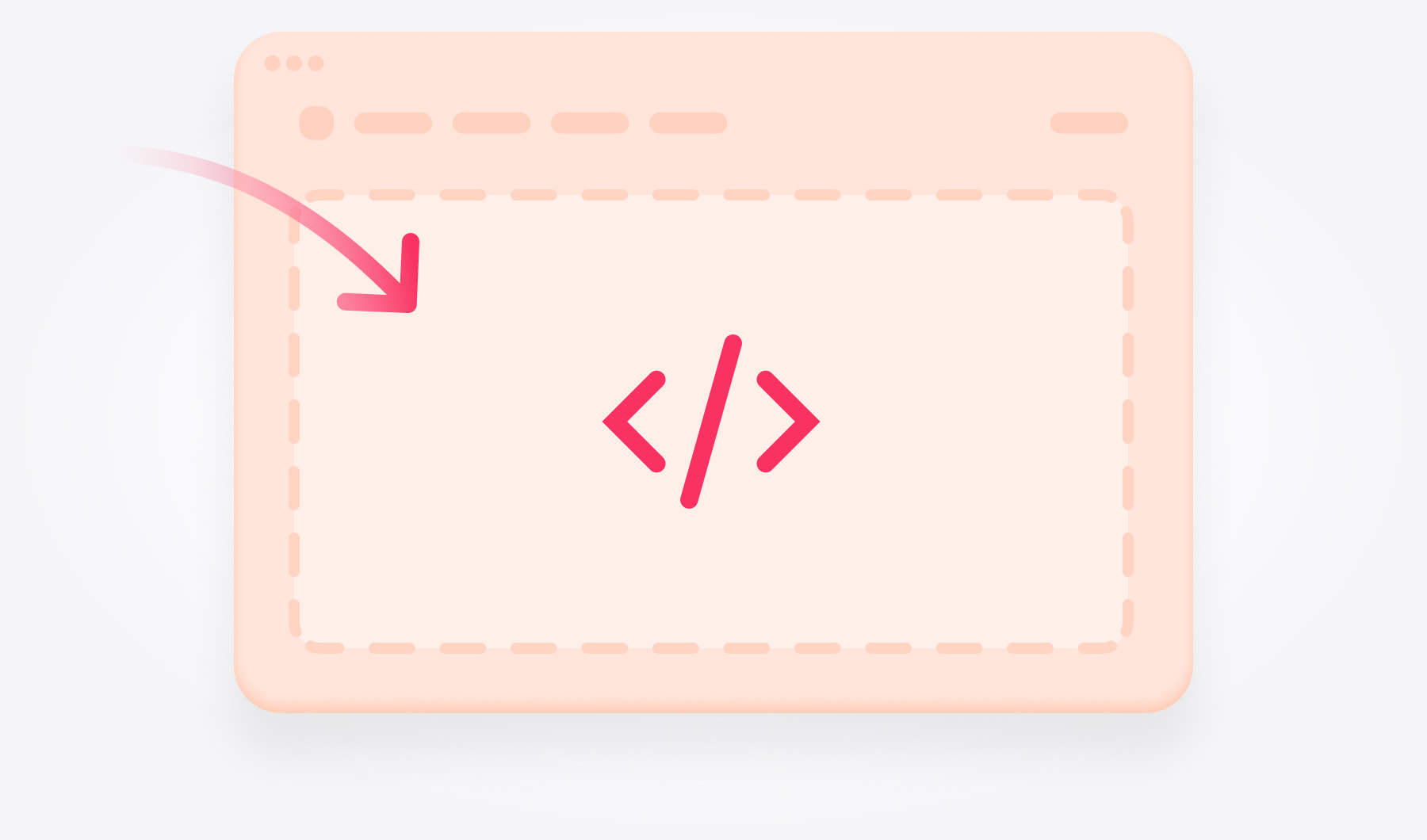
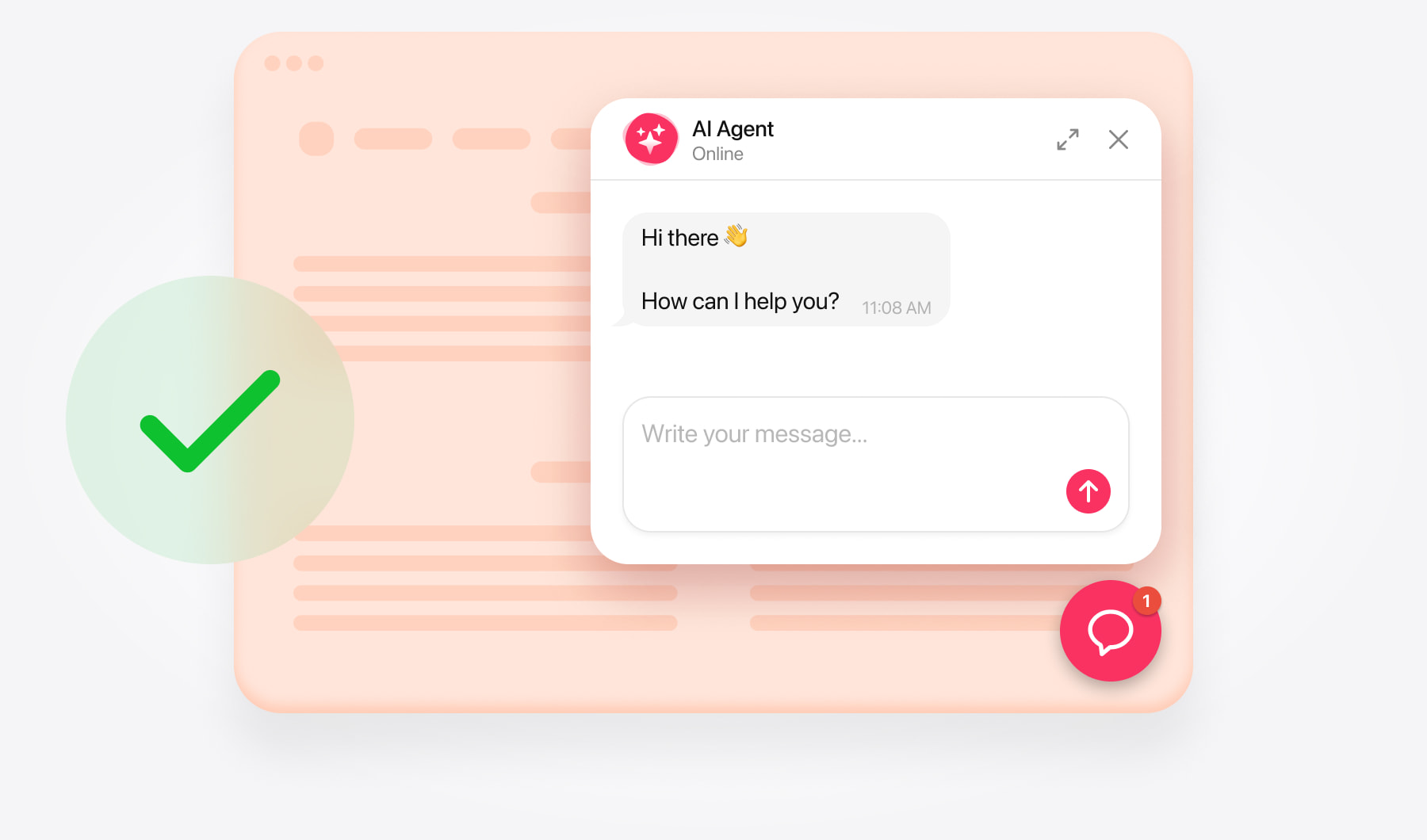
Create your chatbot and copy its code
Open the AI Chatbot editor and enter your store’s website address. Review the generated knowledge, add missing product or policy information, and test the chatbot’s answers.
Customize its appearance and choose a layout:
- Embedded chat window — appears within your page content.
- Floating chatbot — stays accessible through a chat launcher as shoppers browse.
Save your chatbot and copy its complete installation code from the dashboard. Use this code in your chosen installation method below.
Add AI Chatbot as a floating chat
Use floating chat when you want shoppers to ask questions without leaving the page they’re browsing.
Add floating chat across your storefront
Open your theme editor. Go to Storefront → Themes → Advanced → Edit Theme Files. If unavailable, select Make a Copy, apply the copied theme, and reopen the editor.
Find the shared layout. Open templates → layout → base.html.
Insert your code. Paste the complete floating chatbot code before {{{footer.scripts}}}.
Save. Click Save & apply file.
Alternatively, place the code before </footer> in templates → components → common → footer.html. Choose one location to avoid duplicate installation.
Checkout may require separate setup.
Add floating chat to a selected page
Open Storefront → Themes → Customize.
Select the page from the top dropdown.
Drag an HTML block into an available region.
Paste your floating chatbot code and click Save HTML.
Save and publish.
The block holds the installation code; your chosen floating layout controls the launcher.
Add AI Chatbot as an embedded chat
In Page Builder, select the target page.
Drag an HTML block to the desired position.
Paste your complete embedded chat code.
Click Save HTML, then save and publish.
If the page is unavailable in Page Builder, use Edit Theme Files → templates → pages. Insert the code before the relevant content section’s closing {{/partial}}, then Save & apply file. Shared templates can affect multiple pages.
Check the embedded chat’s position
Open the published page and make sure the chat appears where visitors will expect it. For example, a dedicated support page can introduce the chatbot with a short instruction explaining what customers can ask.
Check that the surrounding page layout gives the chat enough room. Test it on a phone as well as a desktop, particularly if you placed it alongside other content.
Test your chatbot installation
Open your live store in a new or private browser window and check that:
- The chatbot loads and visitors can send and receive messages.
- The floating launcher appears on the intended pages.
- The embedded chat interface is fully visible.
- The launcher doesn’t overlap important controls, such as the cart or cookie banner.
- Product links, contact buttons, and other configured actions work correctly.
- The layout is usable on desktop and mobile.
Test a few questions your shoppers are likely to ask. If an answer is incomplete, review the relevant knowledge source and add the missing details.
Need help with installation?
Contact the support team with your store’s URL and explain whether you want a floating chatbot across the storefront or an embedded chat on a particular page. Free installation assistance is available.